Window Manager Config Generator for Your First Login
On the first login to a new window manager, I want a working terminal, an application launcher and a way back to my old session. Build a starter config here, with the package commands and keybindings for your setup.
Open the config generator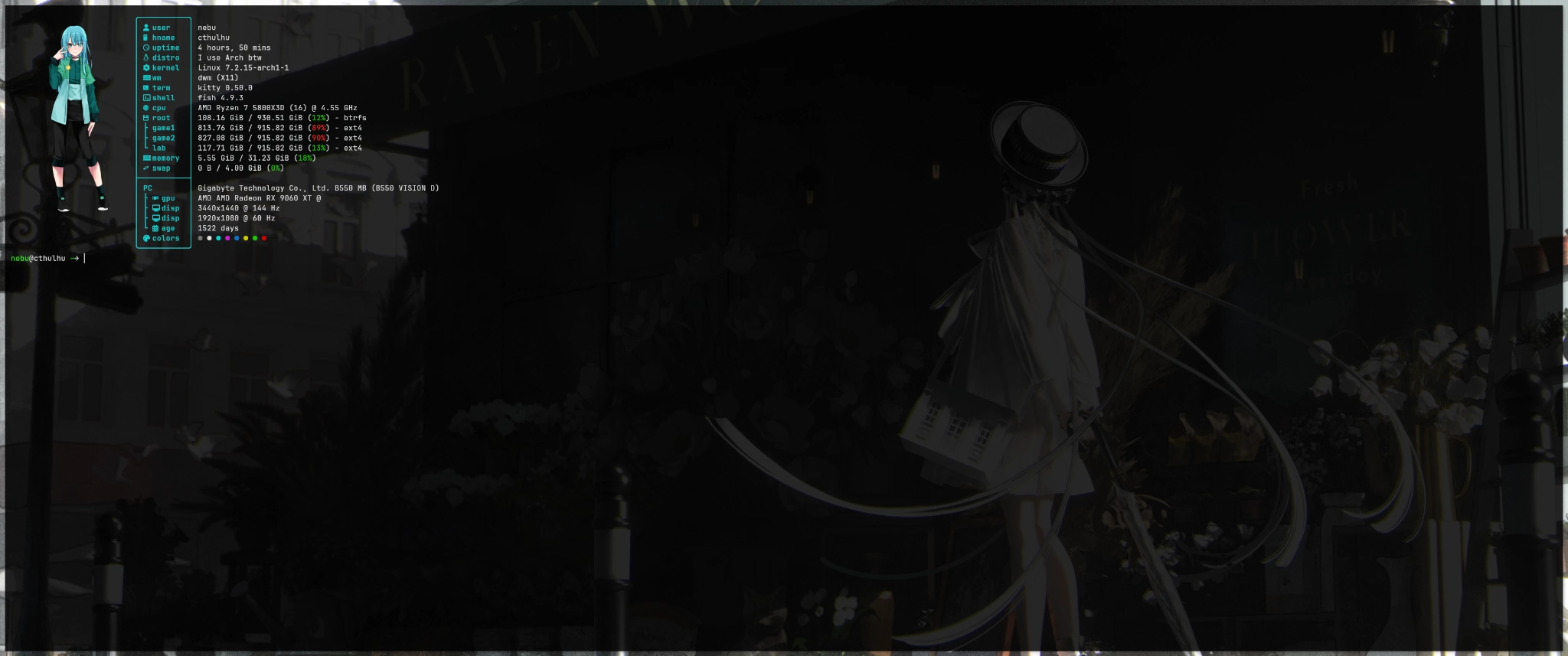
Build a starter configuration
Choose a distribution, window manager and applications. Get a package plan, shortcuts and the configuration files you can save locally. Your selections stay in the browser.
From installation media to first login
- Back up your files and get official installation media. Verify its signature or checksum as documented. Try a live system or virtual machine first.
- Check the destination disk and partition plan. Choose a full desktop if you want a file manager, network controls and settings on day one.
- Update the installed system through your distribution’s normal route. Install the applications and session you want before leaving your current session.
- Open the terminal and browser from your current session. Back up existing configs and validate new ones. Then select the new session at login.
APT and DNF install from configured repositories and resolve dependencies. On Pacman, install against a fully updated system. Portage applies profiles and USE flags. NixOS builds the system from its declaration. Flatpak applications use their own runtimes and sources. Update instructions for all eleven distributions
Recover from an empty first desktop
- Try the terminal shortcut from your generated list. The default is Super+Enter.
- Switch to a free text console, often Ctrl+Alt+F3. Some devices also need Fn. Sign in as your usual user.
- Check that your browser, terminal and launcher are installed. For example,
command -v kittyshould give a path if you chose Kitty. Use the builder’s validation command to check config syntax. - Rename the new configuration file to an unused name and restore your separate backup. If you changed the NixOS setup, you can select the previous generation from the boot menu when available.
- On a systemd system,
systemctl status display-managershows the login manager status.journalctl --user -bmay show clues about the session. Return to the login screen and choose your existing graphical session. The function key for returning varies by distribution.
You can add a bar, wallpaper and notifications later. For a fresh WM, get the terminal, launcher and recovery path working first.
X11 or Wayland?
Under X11, an X server manages display and input, and a separate window manager arranges windows. Wayland is a protocol in which the compositor handles display, input and window management together. XWayland runs an X server within a Wayland session and supports many older X11 applications. Check the login menu for the sessions actually installed. Wayland documentation
| Task | What to check |
|---|---|
| AMD and NVIDIA | AMD’s open graphics stack combines kernel, firmware and Mesa. On NVIDIA, options depend on GPU model, driver version and compositor. NVIDIA’s open kernel modules still use NVIDIA userspace components. Check support for the whole session. NVIDIA on ArchWiki · AMDGPU on ArchWiki |
| Steam, Proton and Wine | Older games and clients may run through XWayland. Native Wayland support depends on the program and Wine version. Check Vulkan, any needed 32-bit drivers, controllers and the exact game. Valve Proton |
| Capture and sharing | On Wayland, the ScreenCast portal and PipeWire often supply a selectable stream. Desktop, portal backend and app must work together. X11 applications often access screen data through X11. Try sharing a single window with your app. ScreenCast portal |
| Monitors and older apps | Check mixed refresh rates, scaling and fullscreen on both monitors. On Wayland these depend on the compositor. XWayland can have scaling and input limits for older apps. Test global shortcuts and capture separately. |
| Remote access | Forwarding an X11 application over SSH, sharing a running session and connecting before login are separate tasks. Wayland sharing, consent prompts and unattended access depend on the desktop and tools. Test the exact workflow. |
I play on Cthulhu with Arch Linux and dwm under X11, including Steam/Proton and Lutris. I have also gamed on NixOS and Sway under Wayland. These are examples from my own setup. Cthulhu with Arch and dwm · Sway configuration explained
Up for a challenge?
Gentoo + ratpoison + NVIDIA + Steam
I’d set up Gentoo with a multilib profile, install the matching NVIDIA driver and start ratpoison under X11. Once I could open a terminal with a keyboard shortcut, I’d set up NVIDIA’s 32-bit graphics libraries and install Steam from the Steam overlay.
You’ll have to figure out the rest yourself. :D
Image credits
- Cthulhu · Arch Linux · dwm (X11) · Dennis Hilk
Read more
Which Linux Distro Should I Use in 2026?Linux Updates Explained