Which Linux Distro Should I Use in 2026?
I’ve run Debian, Arch, Gentoo, NixOS, CachyOS, Zorin OS and Linux Mint. My everyday answer changes with the machine. The desktop I want to tinker with and the laptop I want to open for a video call ask for different things.
Take the quiz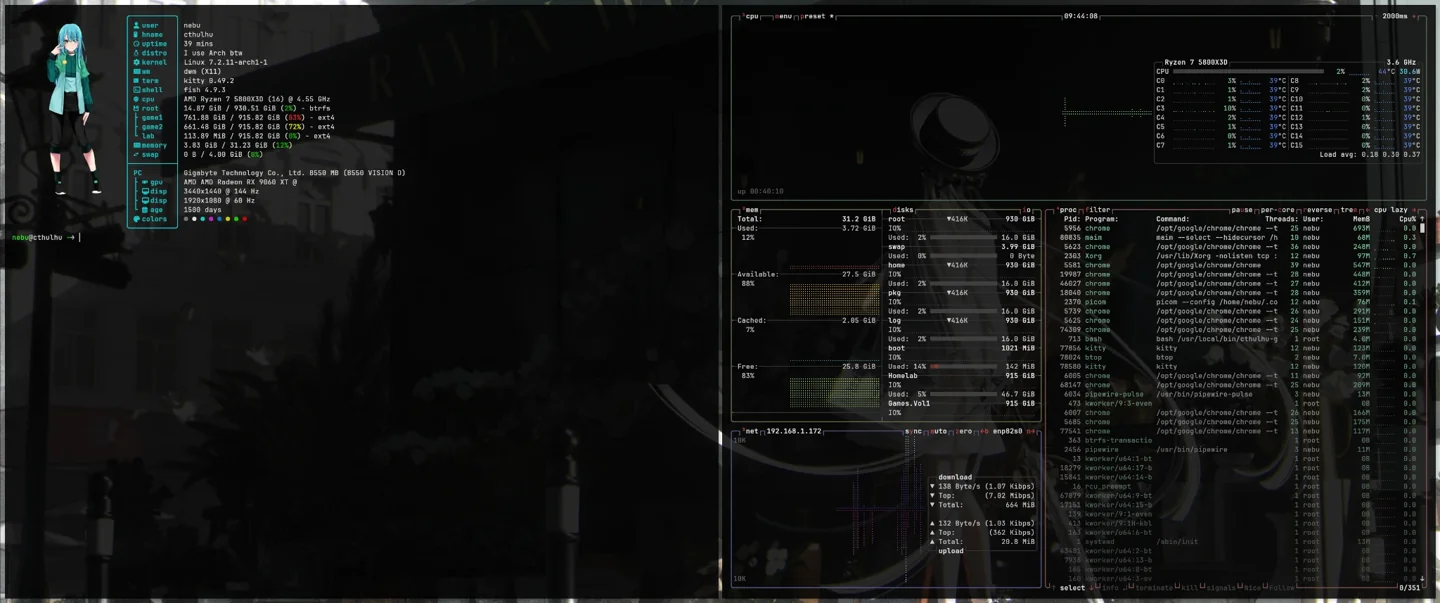
Find a Linux distribution with 15 questions
Your answers stay in the browser. Skip questions or revise answers at any point.
How the ranking works
Each answer and distro profile has a level from 0 to 2 per topic. The distance between them is multiplied by the question weight. Skipped questions contribute nothing. Tied distributions share a rank. These weights reflect the priorities of this guide.
- How much Linux experience do you have? · Weight 3
- What do you do when something breaks? · Weight 2
- What is this machine mainly for? · Weight 2
- How important is gaming to you? · Weight 2
- How do you want to set up everyday applications? · Weight 1
- How recent should system packages be? · Weight 3
- How much do you enjoy experimenting with the system? · Weight 2
- How much time can maintenance take? · Weight 3
- How do you want to manage software and updates? · Weight 2
- What does your hardware need? · Weight 2
- How do you want to set up extra drivers? · Weight 2
- How much do you want to change the desktop? · Weight 2
- Where should software come from? · Weight 2
- How important is a reproducible system setup? · Weight 3
- How deeply do you want to learn Linux? · Weight 2
For a first Linux desktop, start with the ordinary stuff
If I were helping someone move from Windows this weekend, I’d put Linux Mint Cinnamon on a USB stick first. I’d have them open a browser, find the settings, connect to Wi-Fi and wake the laptop from sleep. Then I’d plug in the second screen. I want to know how the machine behaves while doing the jobs it already has. A first boot is more informative than an argument about the perfect distribution.
Zorin OS is another good place to start if the layout feels familiar. Ubuntu LTS makes sense when someone already has Ubuntu instructions for a class, an application or work. I’d pick Xfce on an older machine and test how well its hardware handles the applications I actually need. A light desktop can free memory. A demanding web app can still fill it.
I keep the preparation for a Windows move in the Linux Migration Companion. Use it to plan a live test and work through files and applications before committing the disk.
Linux Mint, Debian, Fedora or Arch?
For a machine that spends days in a drawer and still needs to come up for a video call, I like Debian with KDE Plasma. The package base changes slowly, security updates keep coming, and I can go back to what I sat down to do. Mint makes a similar choice easier for a newcomer who wants a ready-made Cinnamon desktop and graphical update tools. Debian leaves more of the selection to the installer and the person using it.
| If I need… | I’d look at… | What I’d check |
|---|---|---|
| A familiar desktop | Mint Cinnamon, Zorin OS | Sleep, display scaling and the applications I use |
| A long-lived base | Debian 13, Ubuntu LTS | Hardware support and how the distribution ships my apps |
| A more recent graphics stack | Fedora, Tumbleweed, Arch, CachyOS | Release or snapshot cadence and third-party drivers |
| A system to study and shape | Arch, NixOS, Gentoo, Slackware | Time for setup, updates and recovery |
Fedora is a good middle ground when I want recent kernel and graphics packages with named releases. I’d try both Workstation and Fedora KDE Plasma Desktop if I were choosing a desktop from scratch. Tumbleweed is rolling in tested snapshots. On a system set up with Btrfs and Snapper, I also have a recovery option when a system update goes sideways. CachyOS supplies an Arch-based installer and its own optimized packages. I’d pick it for those defaults, after checking CPU support and how the additional repositories affect maintenance.
Arch is the choice I made on Cthulhu. I enjoy selecting the components and can set aside time to look up news before big upgrades. With Gentoo the choice extends into package features and build options. I find that fascinating on a machine I’ve set aside for it. With NixOS I get to describe the machine in a configuration I can revisit, at the cost of learning a different model. Slackware makes sense if the traditional Unix-like workflow is part of what you want to learn. Check whether the time you have for the system matches the job you want it to do.
Eleven Linux distributions compared
Each screenshot shows a specific installation. Desktop, theme and applications vary by edition and setup, especially on Arch, Gentoo, Slackware and NixOS.
Linux Mint
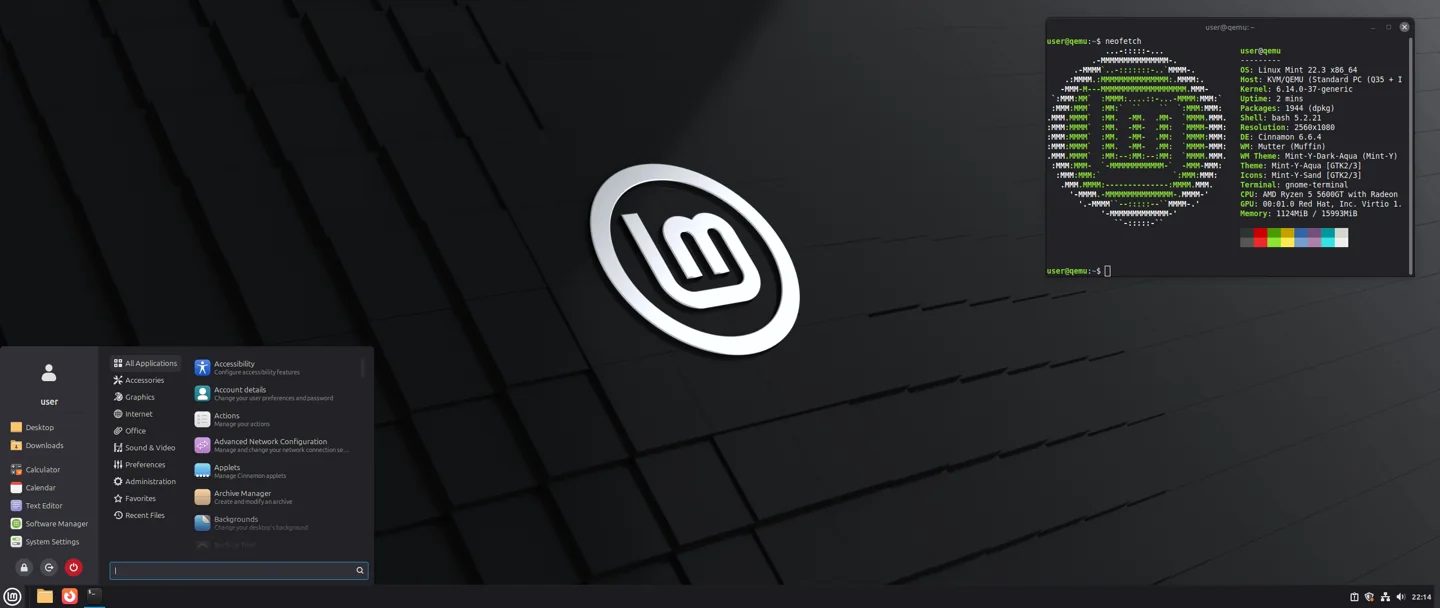

A familiar starting point
Cinnamon, MATE and Xfce are available as live images with a graphical installer. This profile covers the regular Ubuntu-based editions. LMDE follows Debian and has its own release path.
APT and Update Manager maintain a long-lived base. Driver Manager helps install available proprietary drivers. Xfce can be useful on an older PC.
Steam and Flatpak are easy additions. Very new GPUs can need a newer kernel or Mesa combination. Mint suits people who want a finished desktop with light maintenance. Fedora and Arch move the system stack faster. The Mint guide covers Timeshift and release upgrades.
Debian 13
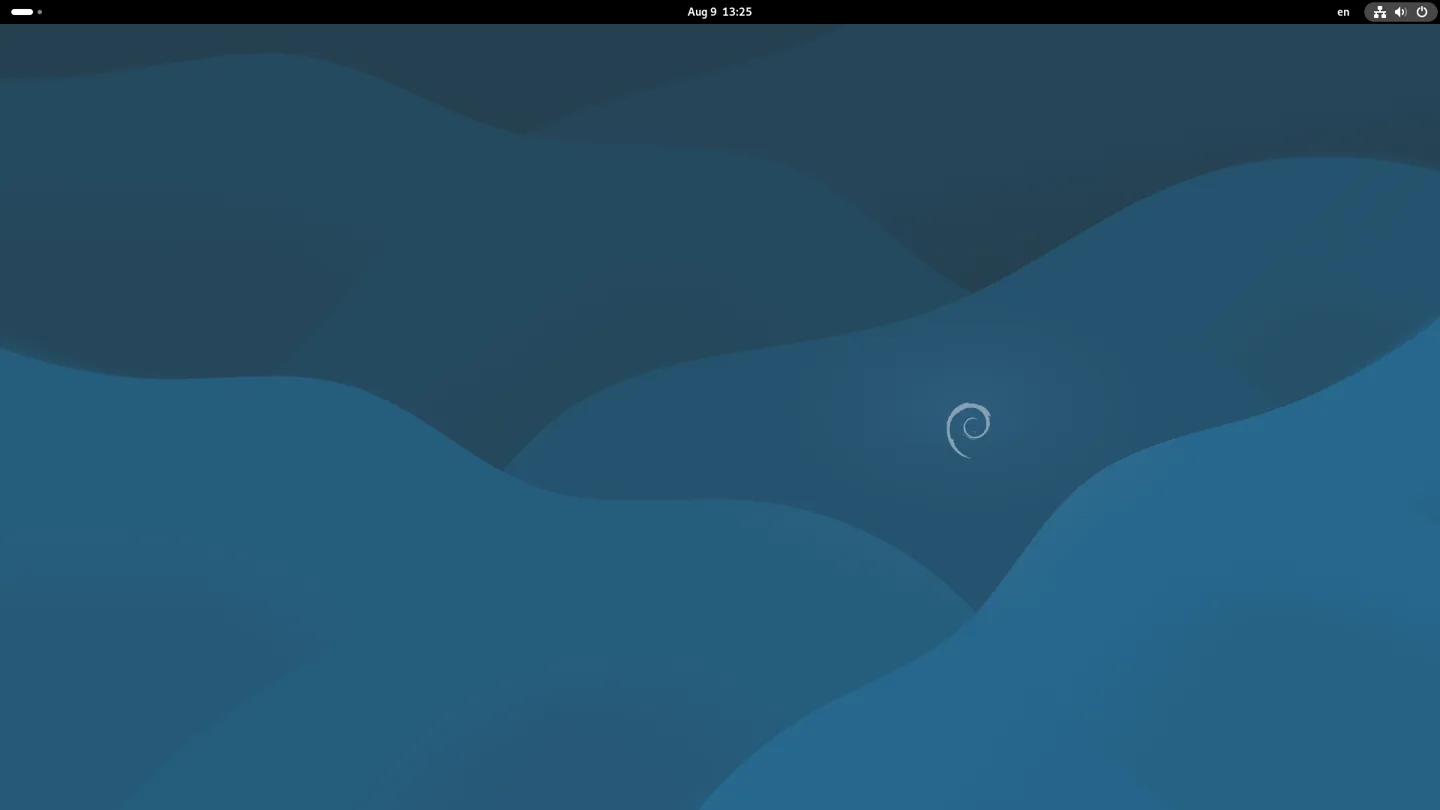

A base that stays familiar
Debian Installer offers GNOME, KDE Plasma and Xfce, among other choices. The small netinst image needs suitable connectivity. Debian also documents how to handle extra firmware.
Debian 13 “Trixie” holds the core package set relatively steady for its stable cycle. APT installs security and bug fixes. Check backports or Flatpak when you need a newer package.
Steam can require additional repository sections and 32-bit libraries. Check firmware, kernel and graphics support before switching very recent hardware. Compared with Mint, there are fewer preconfigured conveniences and more choice at installation. Debian’s handbook and release notes cover system upgrades.
Arch Linux
A rolling release you assemble
The live system starts in a shell. Follow the ArchWiki or use archinstall. Desktop, login and networking depend on your selections. The image shows Dennis’s Cthulhu with dwm on X11.
Pacman manages official packages. The AUR is a separate community source of build recipes. Read Arch News for large changes and perform full system upgrades.
Recent kernels, Mesa and Vulkan drivers help with new hardware and gaming. Steam can require multilib. Some upgrades need intervention. CachyOS supplies more defaults, while Arch leaves assembly to you.
Gentoo Linux
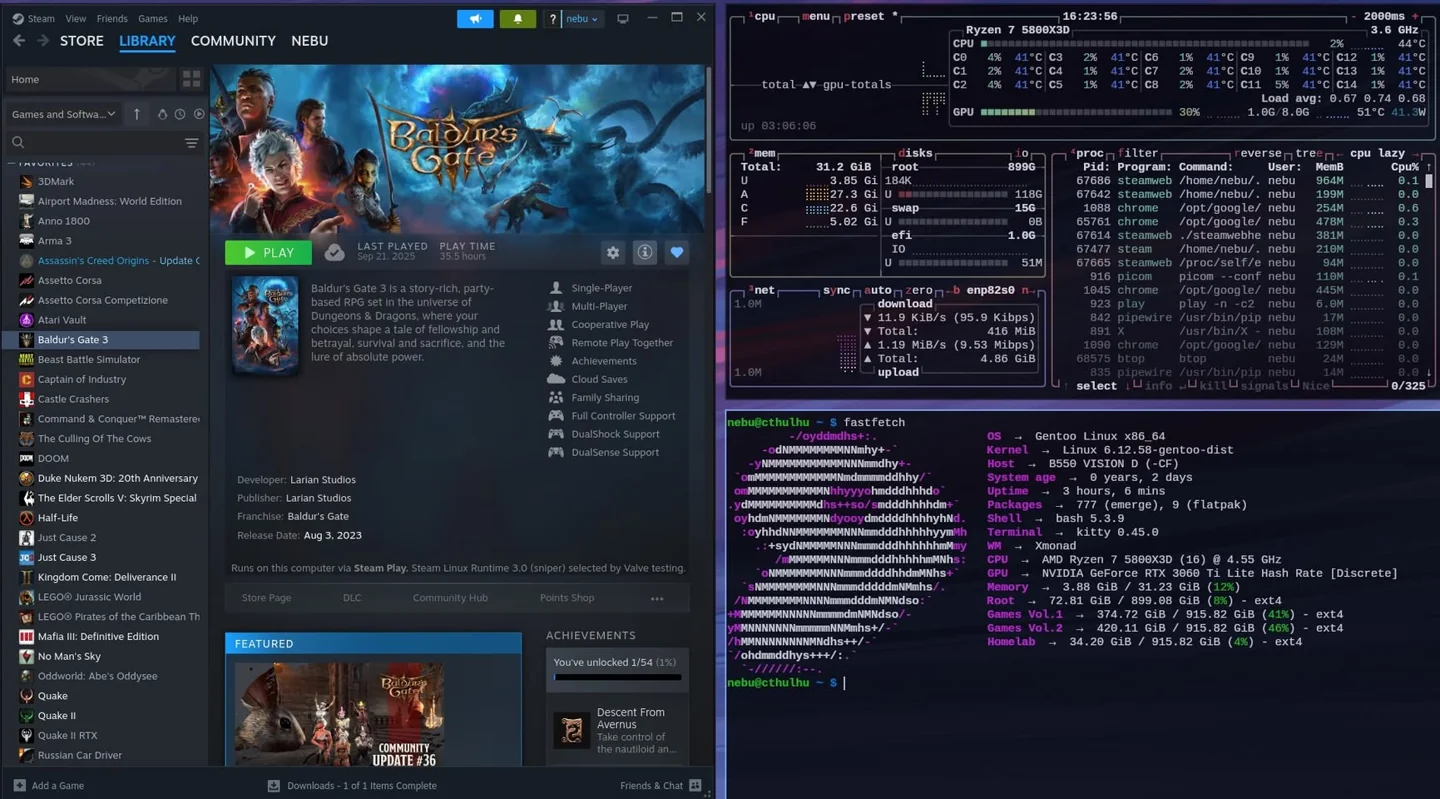
Build options for people who want them
The Handbook takes you from a live system and stage archive to your own system. Plasma, Xfce and xmonad are possible setups. The image shows Dennis’s Gentoo and xmonad desktop.
Portage combines profiles, keywords and USE flags. Binary packages can save compilation time where the profile and options match. A rolling release with your own build choices takes time for news, conflicts and configuration files.
Steam and proprietary drivers can work with suitable packages and 32-bit support. Check GPU, driver and ABI details in Gentoo’s documentation. Compared with Arch, Gentoo gives you deeper control over package features.
Fedora Linux
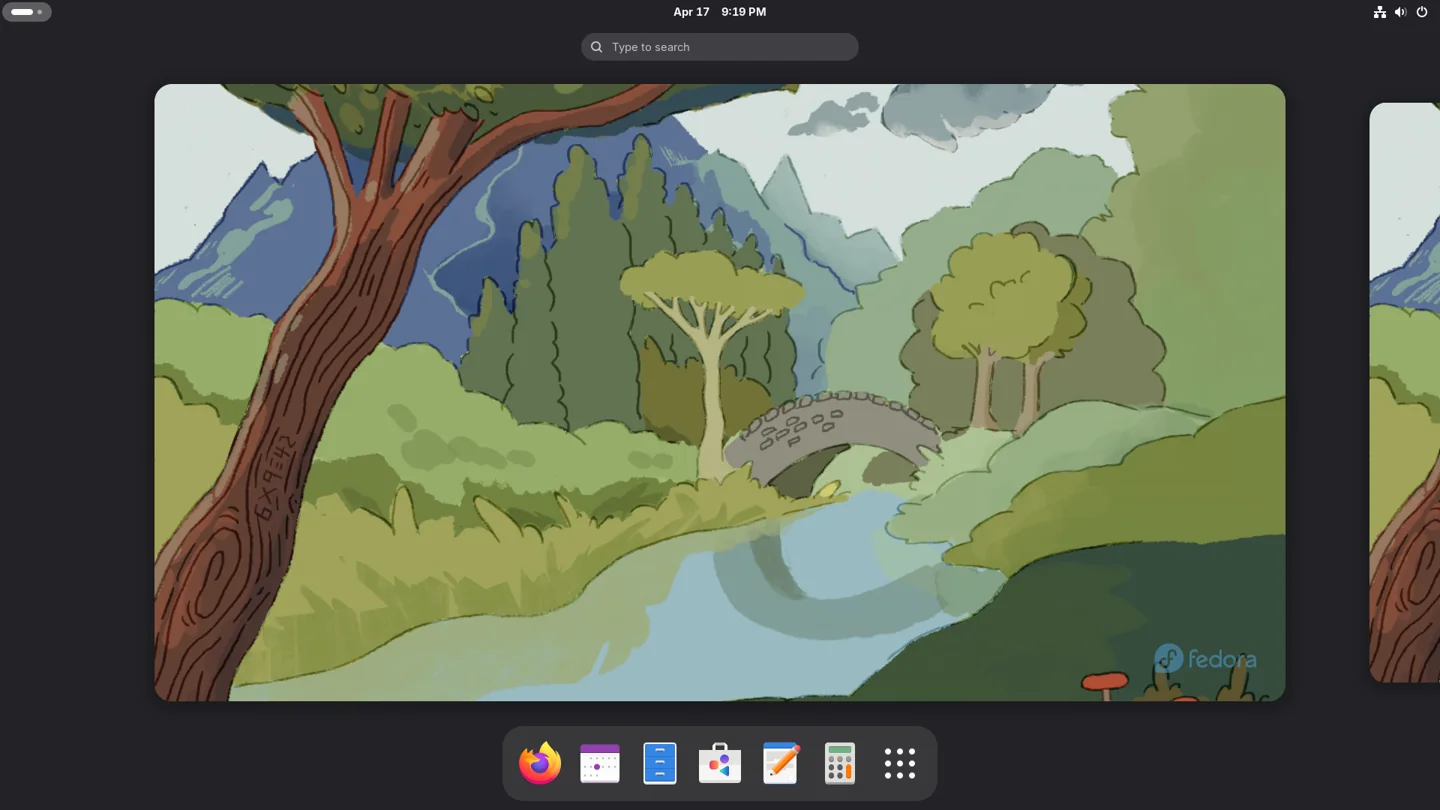

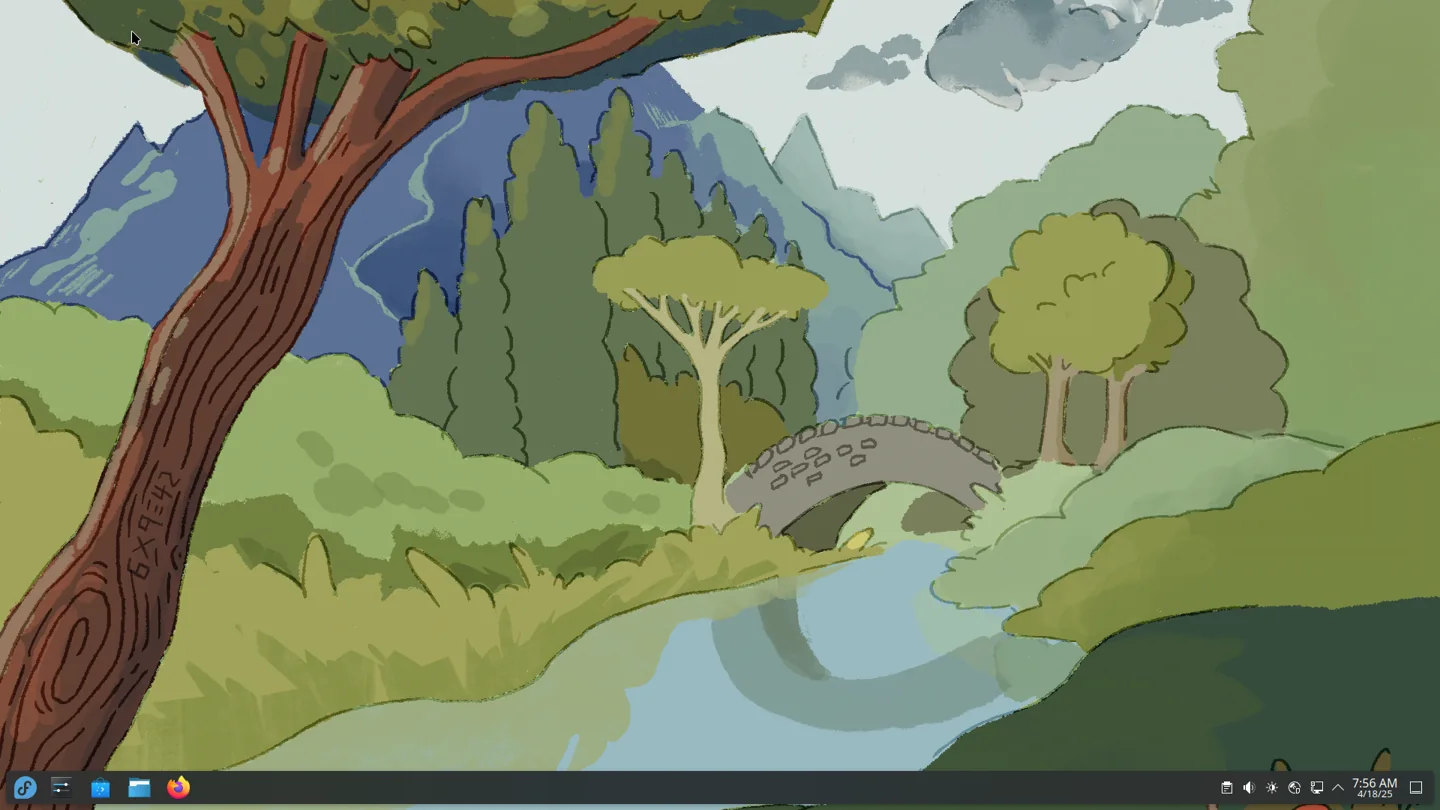

A current stack on scheduled releases
Workstation ships GNOME and Fedora KDE Plasma Desktop ships Plasma. Spins include Xfce, Sway and i3. The usual editions offer graphical installation media.
DNF maintains traditional RPM installations. Fedora delivers frequent releases and expects periodic version upgrades. Atomic variants have a different update path.
Recent graphics packages often suit new hardware. Steam, some codecs and NVIDIA drivers can require extra sources. Check Secure Boot and driver modules. Fedora sits between Debian’s long-lived base and Arch’s rolling model.
NixOS
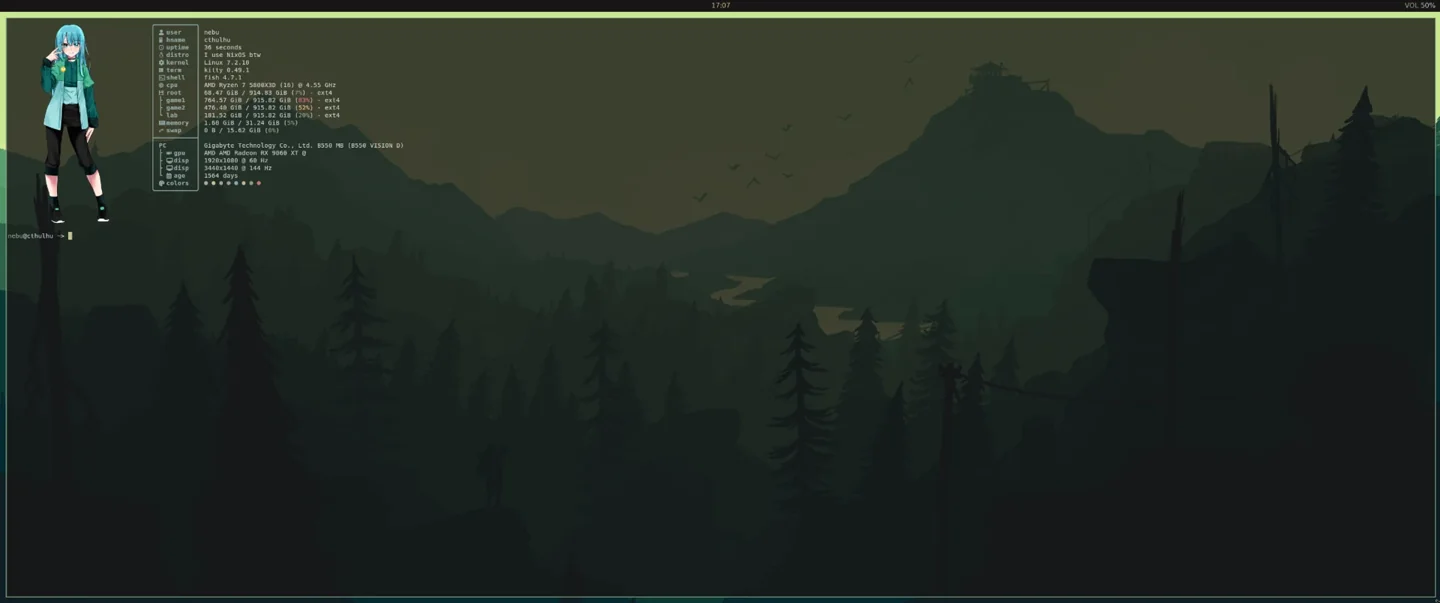
The system as configuration
Graphical images and a minimal image offer different entry points. The installation creates a system configuration. The screenshot shows Dennis’s personal setup.
NixOS describes packages, services and sessions in Nix modules. Nix builds a system generation from those settings. Pinned flake inputs can hold a specific revision. Older generations give you a route back while retained.
Steam and graphics drivers have NixOS options, including support for many games. Some third-party Linux binaries expect a different filesystem layout. Gentoo emphasizes build choices, while NixOS emphasizes declarative system state. The manual and option search are essential companions.
CachyOS
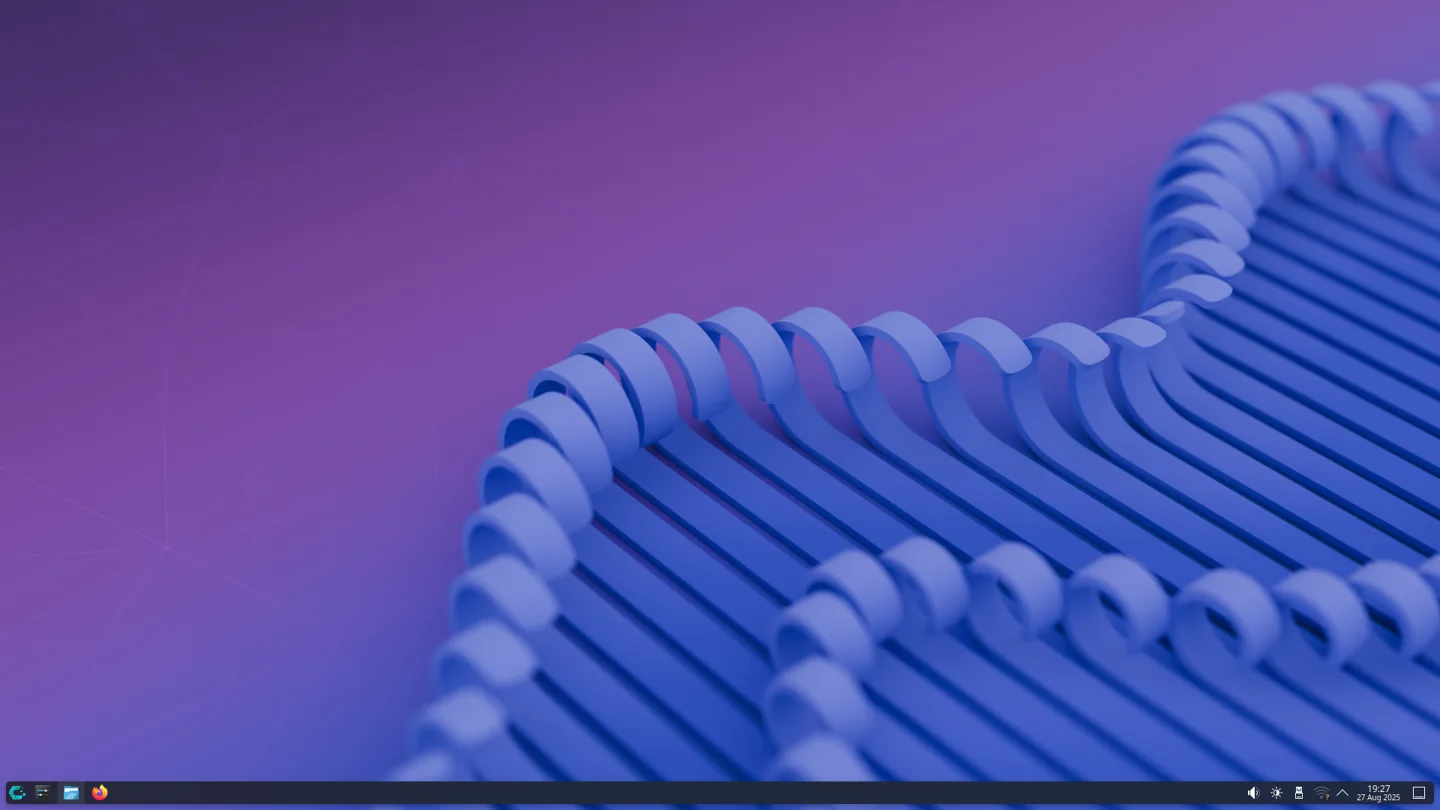

A preconfigured Arch derivative
The graphical installer offers desktop and WM choices. The project supplies its own kernels, repositories and CPU-optimized packages. Check which architecture features your processor supports.
Pacman updates the rolling release. The CachyOS wiki adds guidance for its kernels and packaging tools to the Arch ecosystem. Its own repositories and kernels add components to check when troubleshooting.
Gaming helpers can make setup quicker. Performance and stability still depend on hardware, drivers and the game. Arch suits people who want fewer preset decisions in the same ecosystem.
Zorin OS
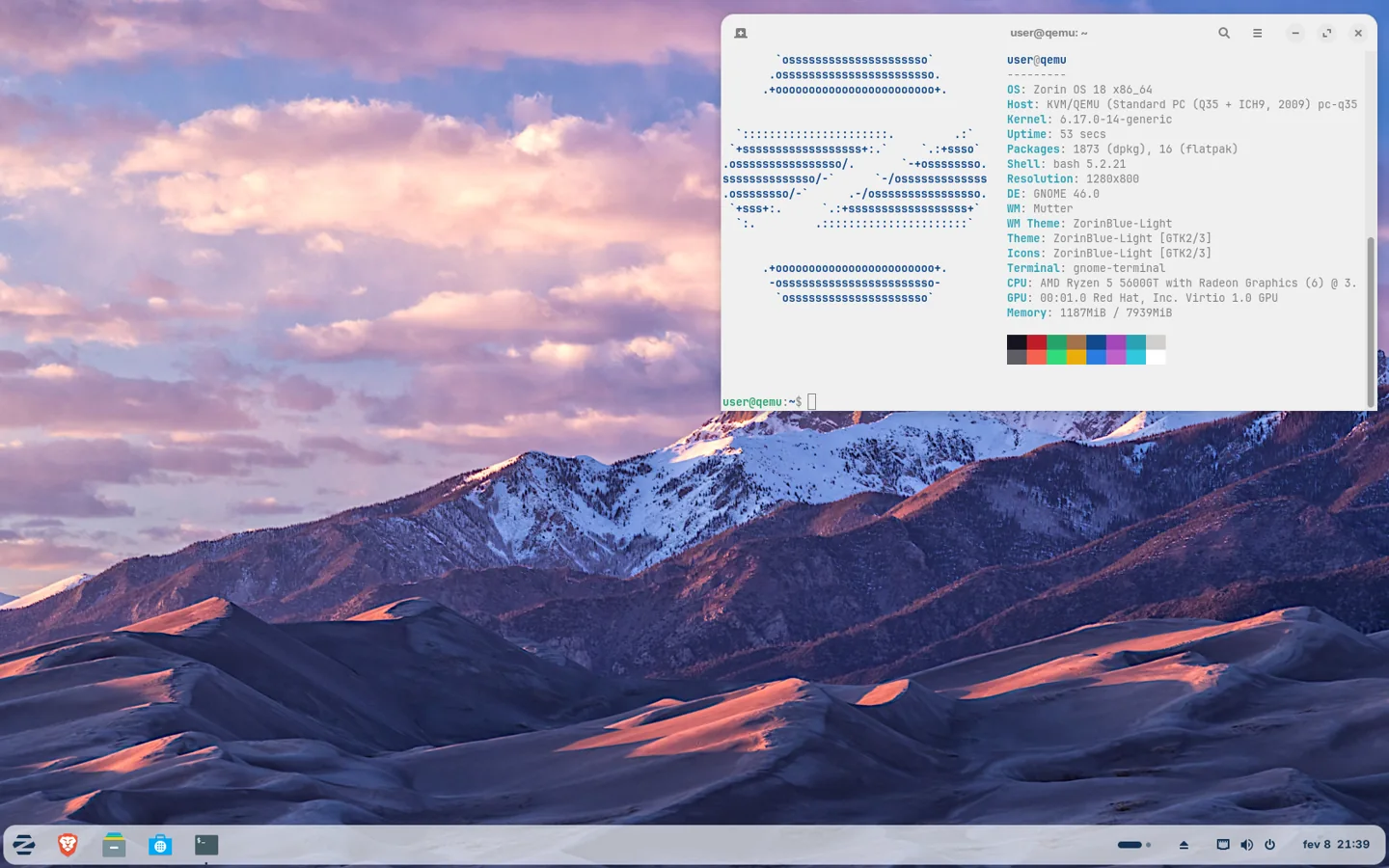

A familiar layout for switching
The standard edition uses an Ubuntu LTS base with a customized GNOME desktop. Try the interface and hardware through the live installer. Editions differ in layouts and bundled software.
APT and Software Updater maintain the base. A dedicated tool handles supported major release upgrades. Preset layouts and graphical software discovery lower the entry barrier.
Steam and common everyday applications are available. Check kernel and driver support in the live system on very recent hardware. Compare Mint if you prefer traditional Cinnamon or Xfce. Zorin Help covers drivers, applications and updates.
Ubuntu
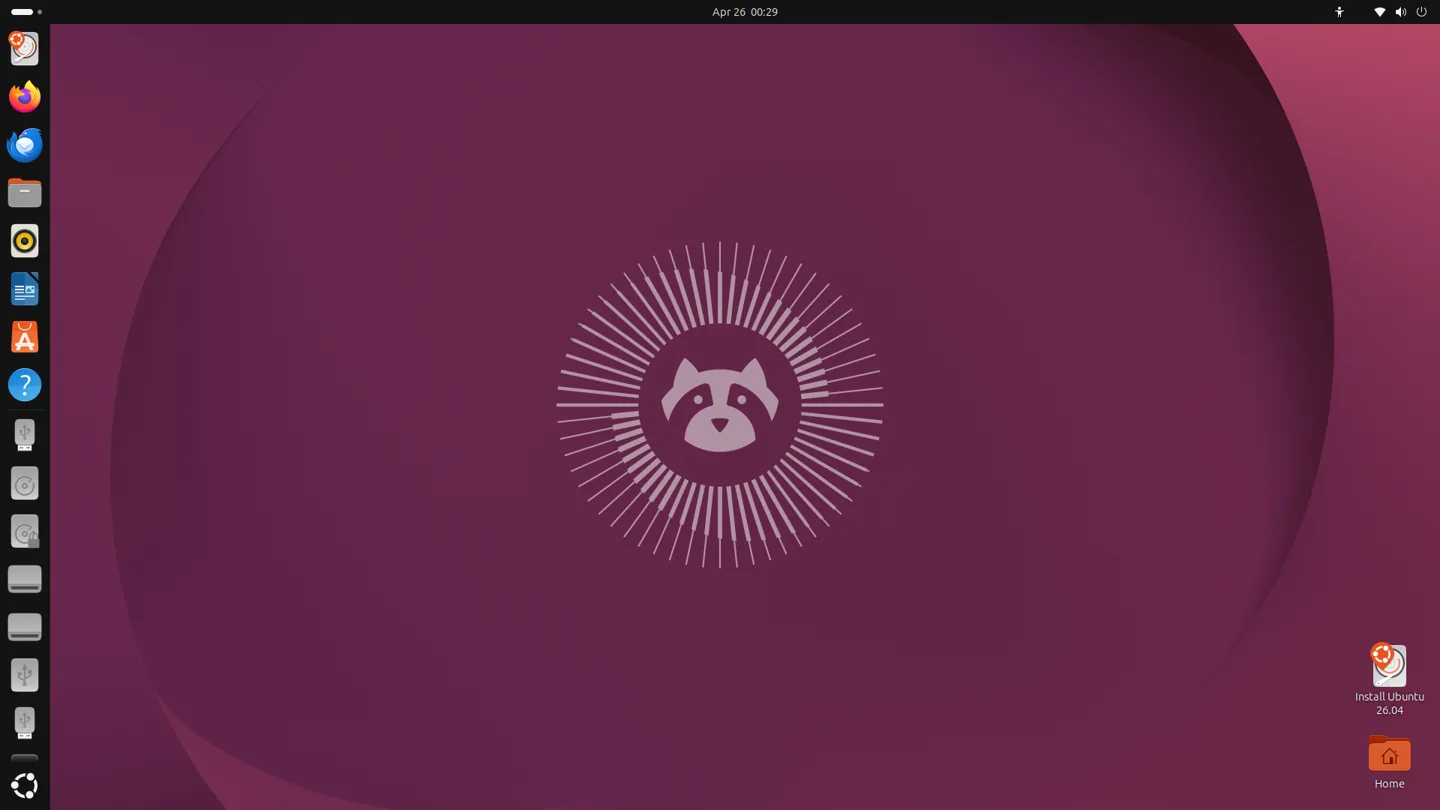

LTS or a shorter release cadence
Ubuntu Desktop comes with customized GNOME and a graphical installer. Official flavors such as Kubuntu and Xubuntu provide different desktops. LTS is the easier maintenance choice for many everyday machines.
APT manages system packages. Ubuntu delivers some desktop applications, including Firefox, as snaps. Interim releases need more frequent release upgrades. Documentation and a large community help with both.
Additional Drivers can simplify NVIDIA setup. Steam and Proton are common, and hardware support depends on the selected release. Mint may suit people who prefer Cinnamon and a different approach to Snap.
openSUSE Tumbleweed
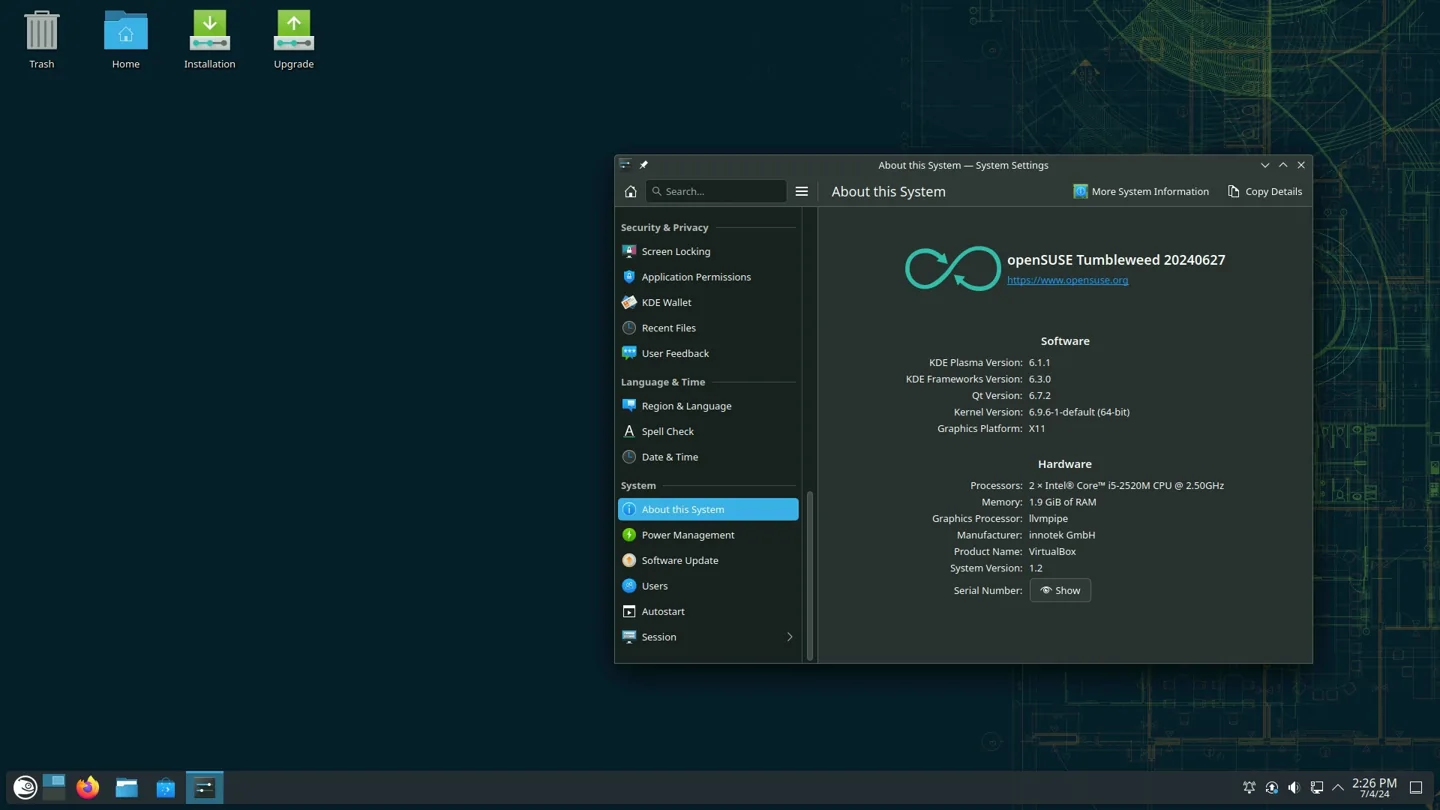

Rolling, tested package sets
Tumbleweed offers Plasma, GNOME and Xfce, among others. Installation media and software choices determine the desktop. openQA checks package snapshots before publication.
Zypper applies new distribution snapshots. Snapper can restore system states on a Btrfs installation configured for it. Distribution snapshots and local filesystem snapshots serve different purposes.
Recent graphics packages can help with gaming. NVIDIA modules and third-party codec repositories must match the snapshot. Compared with Arch, tested package snapshots and optional Snapper integration are distinctive features.
Slackware Linux
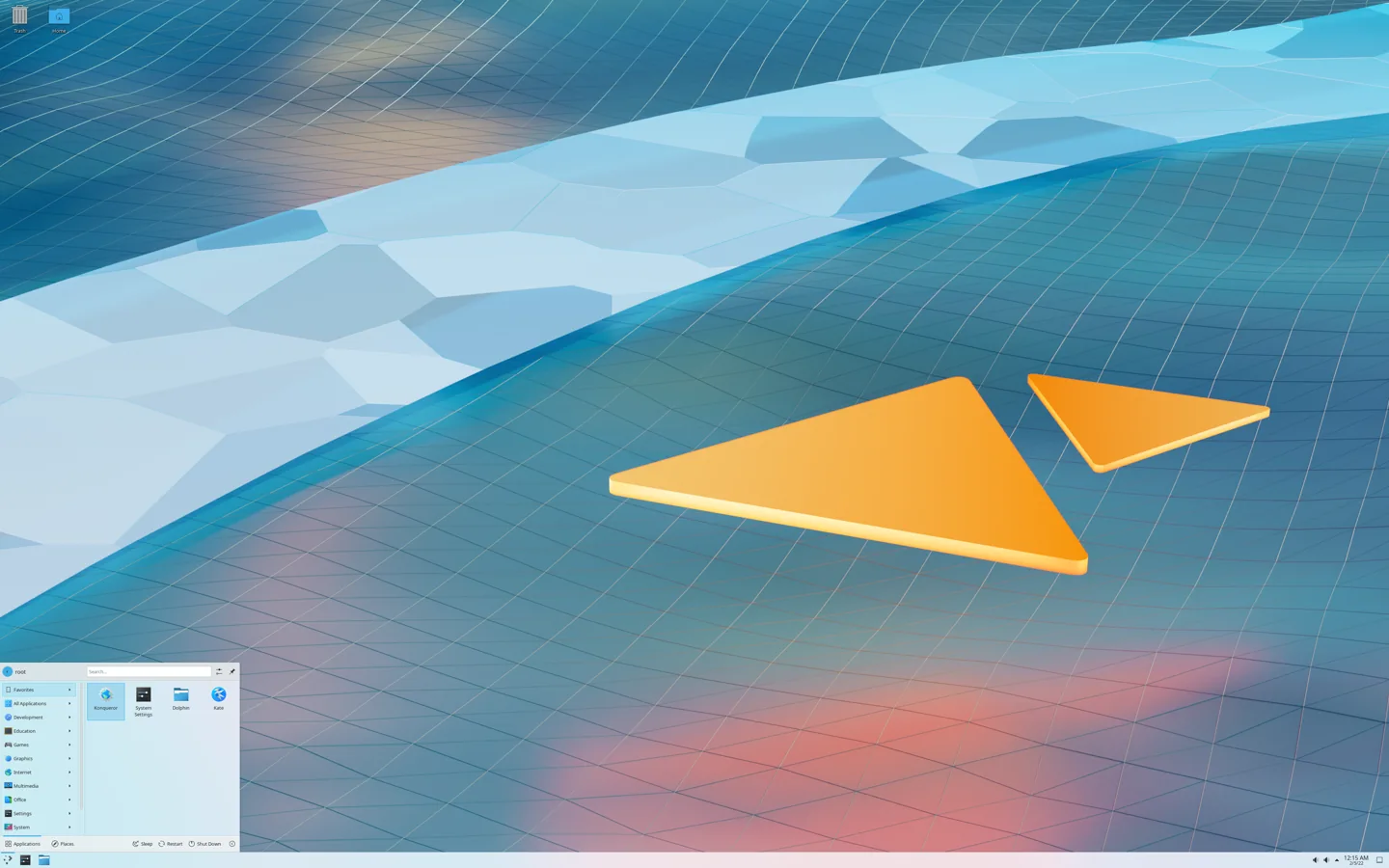

Traditional system administration
Slackware Stable suits people who deliberately want to maintain a traditional Unix-like system. Text-based setup and a full installation are common entry points. KDE Plasma and Xfce are available.
pkgtools and slackpkg handle official packages. Slackware does not automatically resolve arbitrary third-party package dependencies. SlackBuilds and local packages take manual maintenance. Stable and -current are separate branches.
Steam, multilib and proprietary drivers can take extra work depending on the hardware and sources. Check whether the kernel and firmware suit the machine. Debian Stable also offers a slower-moving base, with more dependency handling through APT.
Choose the desktop separately from the distribution
KDE Plasma gives me a panel, familiar window controls and enough settings to make the workspace my own. GNOME favors an overview and search. Cinnamon stays close to the classic panel-and-menu layout. Xfce gives me a straightforward panel and window manager on an older machine. Try the real desktop before choosing. A screenshot of somebody’s Arch theme tells me more about their taste than about what comes on the Arch ISO.
A standalone window manager is another step. I like the direct keyboard workflow in dwm and xmonad. Sway is where I’d start if someone already wants tiling and a modern Wayland setup. i3 and Sway let me decide how the tree splits. In niri, windows live in columns and the visible area scrolls as I move through them. Labwc is a Wayland option if I want a simple floating workflow and a desktop menu.
The first time you log in to a minimal setup, you should know which key opens the terminal. That’s the reason I wanted a WM starter config builder. It connects the package names, the actual launch command and the shortcut, and gives you a way back through a TTY. I’d keep one working graphical session installed until the new one has handled a full day.
Desktop environments and window managers
A desktop environment combines window management, settings and other applications. A standalone window manager or Wayland compositor mainly handles windows and display, with other components added separately. Session filters include older and experimental offerings. Check the notes in each profile.
KDE Plasma
A traditional panel, application launcher and a wide range of settings. KWin manages windows. System Settings and widgets are part of the desktop.
Plasma favors Wayland. X11 session availability depends on Plasma version and distribution. KDE Connect and the extensive settings are handy, and the number of options takes some orientation. Check the edition and session before installation.
GNOME
Activities, search and dynamic workspaces shape the workflow. Mouse, touchpad gestures and keyboard work together. Settings and Shell are integrated.
Newer GNOME releases use Wayland. Older distributions can provide an X11 session. Settings mostly use GSettings/dconf. Extensions can change the shell and may need updates across releases.
Cinnamon
A panel, menu and overlapping windows are quick for Windows users to learn. Nemo and Cinnamon System Settings are part of the usual setup.
Configure it through desktop settings, applets and themes. X11 is the established session. Wayland can be experimental depending on the release. Mint integrates Cinnamon closely, while other distributions supply their own defaults.
Xfce
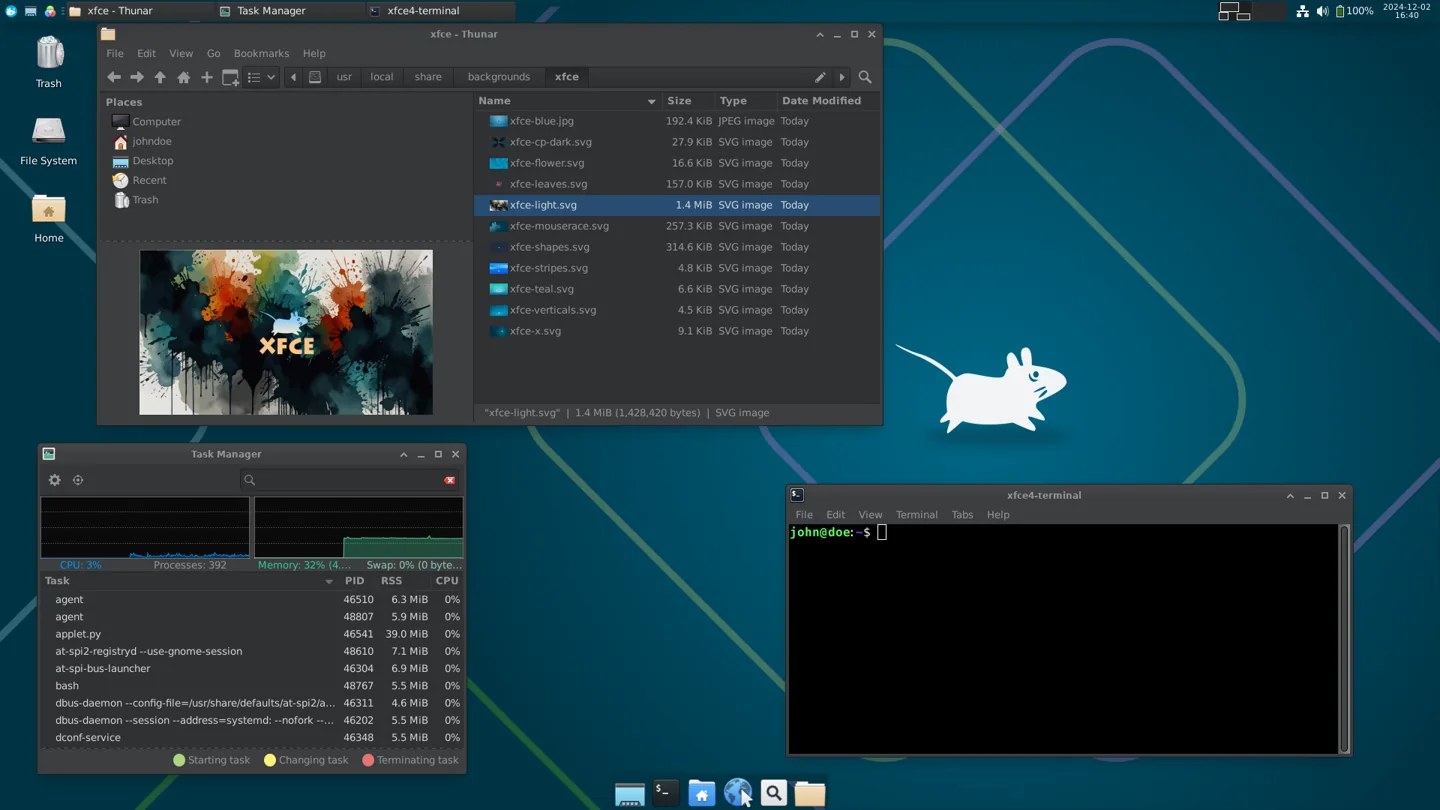

A panel, Thunar and Xfwm form a straightforward modular desktop. Mouse and traditional shortcuts work well together.
Use graphical settings and xfconf. X11 is the established path. Xfce 4.20 has experimental Wayland support with an external compositor. Try a complete Xfce image on an older machine and check suspend and display support.
Hyprland
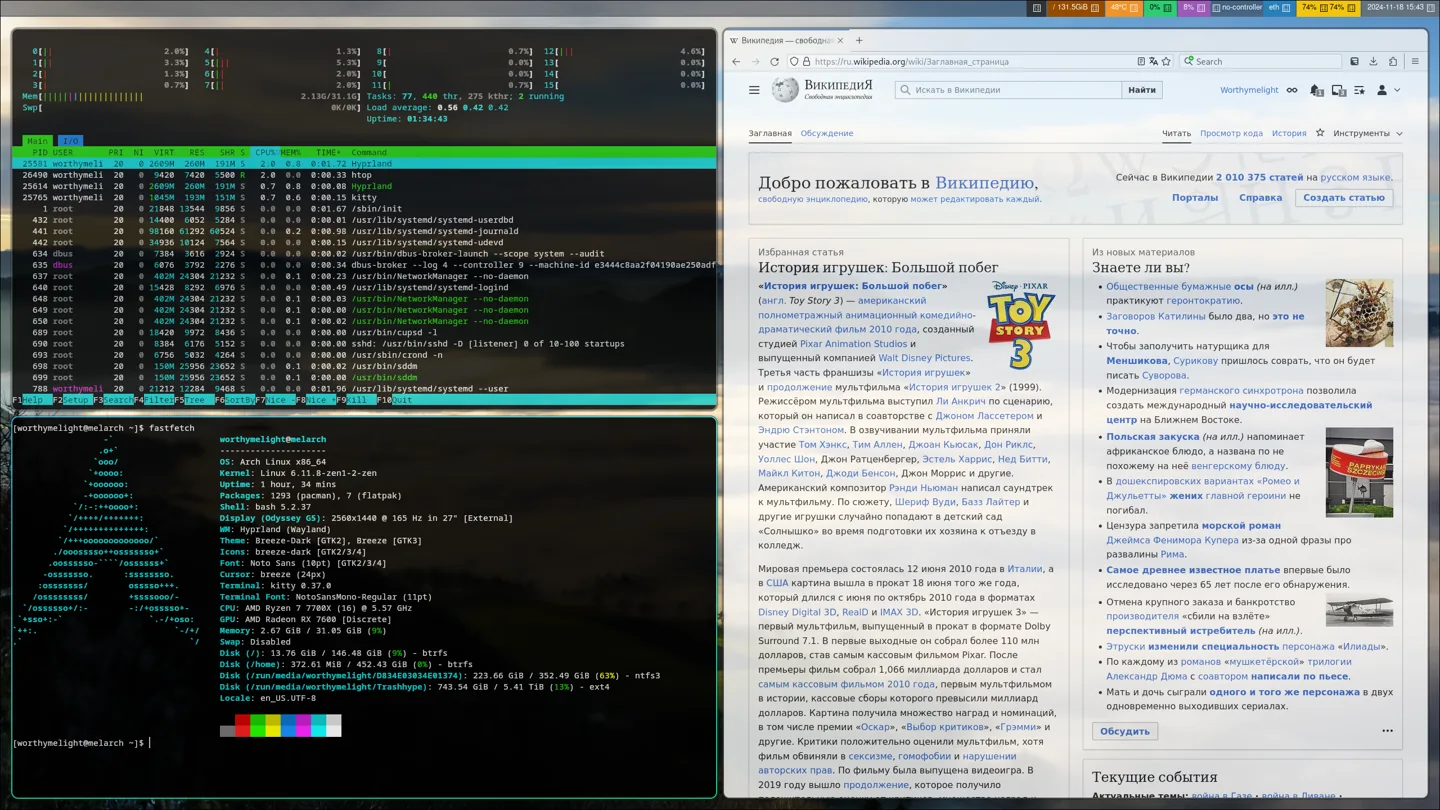

Dynamic tiling on Wayland with mouse controls and native animations. Choose your own panel, launcher, lock screen and wallpaper.
The configuration language depends on the installed release. Upstream documents Lua for newer releases and older builds use hyprlang. Check portals and NVIDIA settings for your version. Current, matching components matter more than a random dotfile archive.
Sway
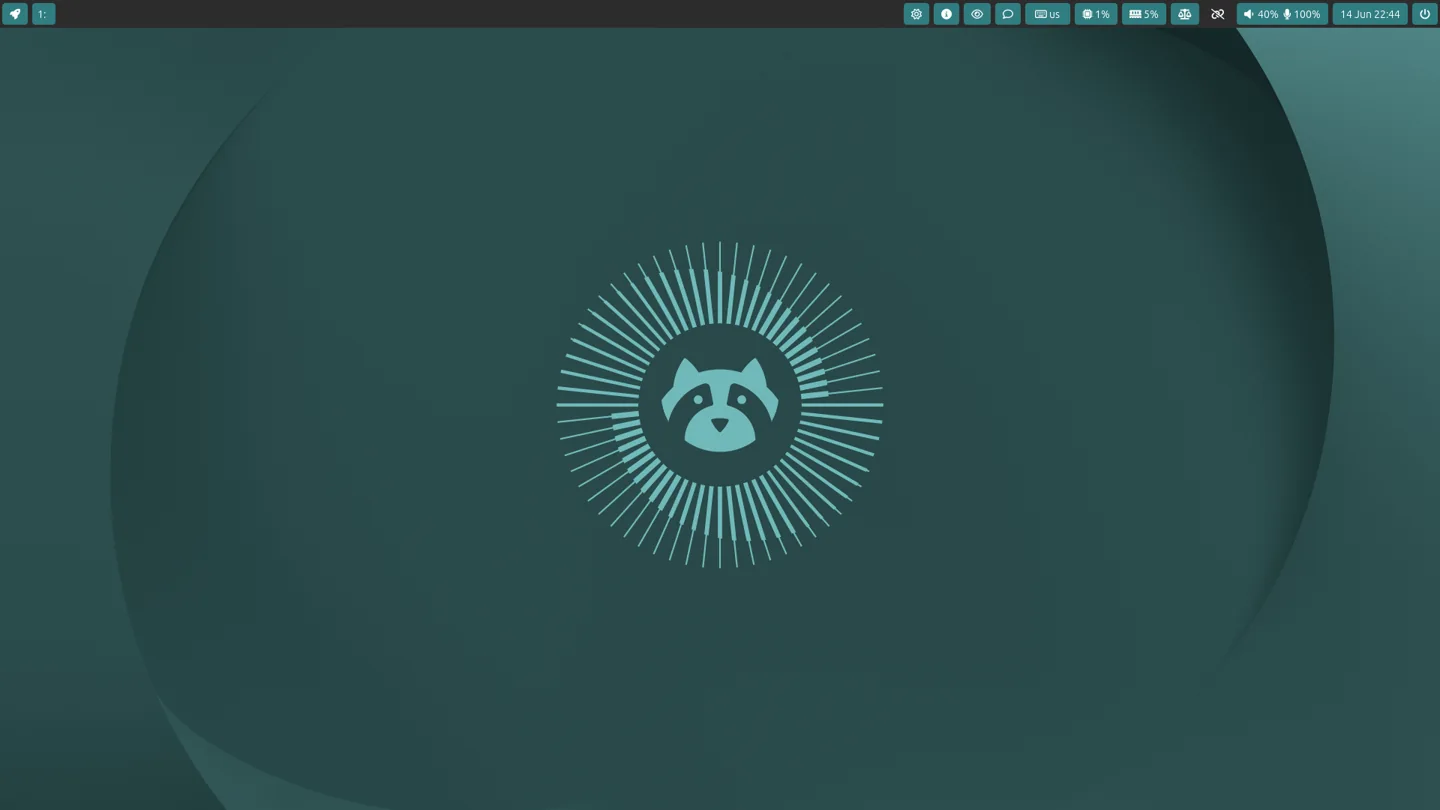

Manual tiling with the tree familiar from i3. Split containers, stack windows or switch to tabs. Keyboard shortcuts are the usual starting point.
Plain text in ~/.config/sway/config. Swaybar can display workspaces out of the box. Launchers, notifications, locking and recording use separate programs. Fedora offers a Sway Spin. On NVIDIA, read the project’s driver guidance first.
niri
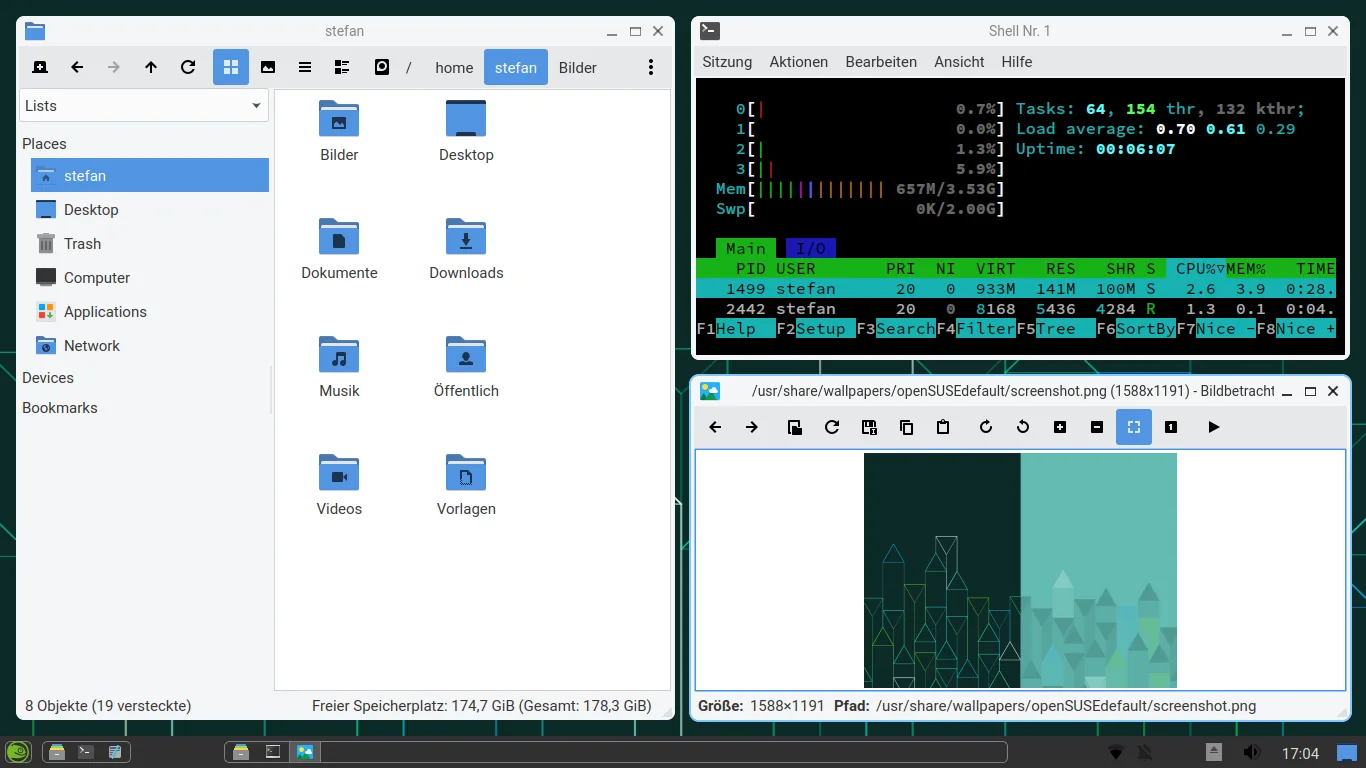

Windows form horizontal columns. New columns can sit beyond the visible area and the viewport scrolls as focus changes. Adding a window need not squeeze existing columns.
KDL in ~/.config/niri/config.kdl. Launcher, panel and notifications are separate. For X11 applications, check xwayland-satellite and your version’s integration. The screenshot shows LXQt with niri as compositor.
labwc
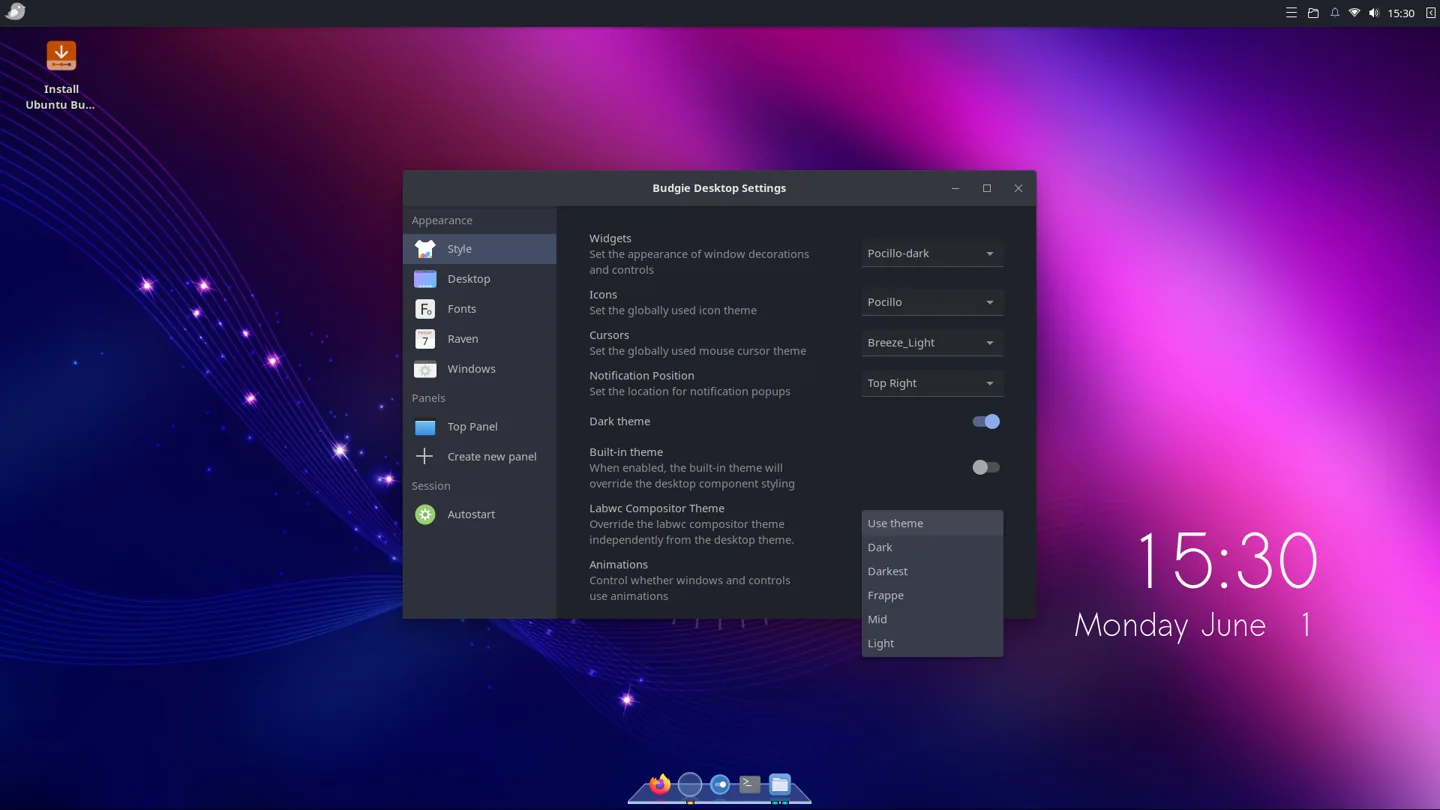

Floating windows, mouse interaction and a context menu. Labwc brings Openbox ideas to a Wayland compositor. It can also run within a full desktop, as shown here with Budgie.
rc.xml and menu.xml under ~/.config/labwc/ control keys and menus. Panel, wallpaper and launcher are separate components. Check the session entry and XWayland availability on your distribution.
i3
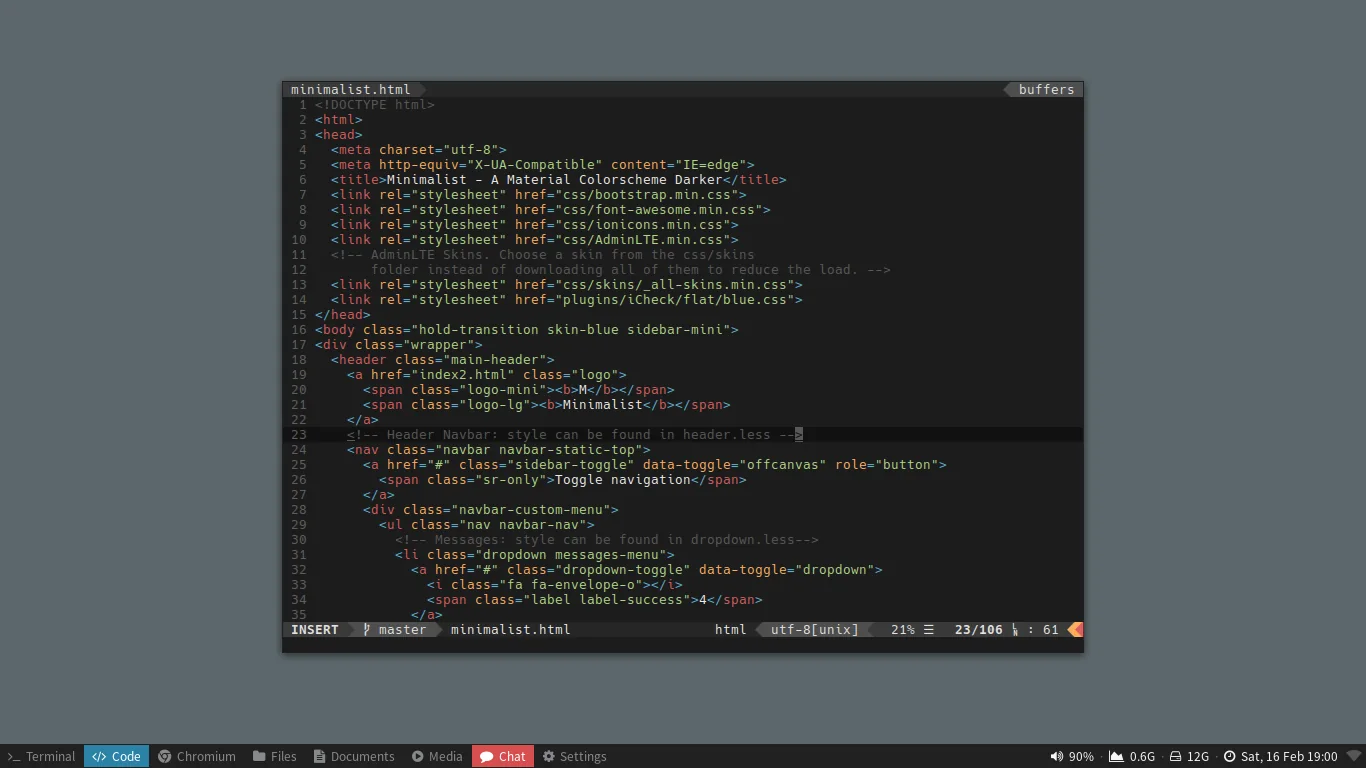

Manual X11 tiling with splits, tabs, stacks and optional floating windows. Suits people who want to choose the arrangement themselves.
Plain text at ~/.config/i3/config. i3bar comes with i3, while i3status and dmenu are separate tools. Many distributions package the X11 session. Consider Sway for a similar workflow on Wayland.
dwm
Dynamic tiling with a master area, stack and tags. The compact X11 bar is built in. Mouse and keyboard can be combined.
config.h is C source and changes require a rebuild. Upstream and patched builds differ in areas such as gaps and restart behavior. Xorg, a compiler, X11 headers, a terminal and dmenu are enough to start.
xmonad
Dynamic X11 tiling in Haskell. Compose shortcuts, layouts and rules as functions. A status bar is optional.
xmonad.hs usually lives in ~/.config/xmonad/. GHC and libraries matching the installed xmonad need to be available for changes. Check the build before restarting and install the terminal and launcher before first login.
awesomewm
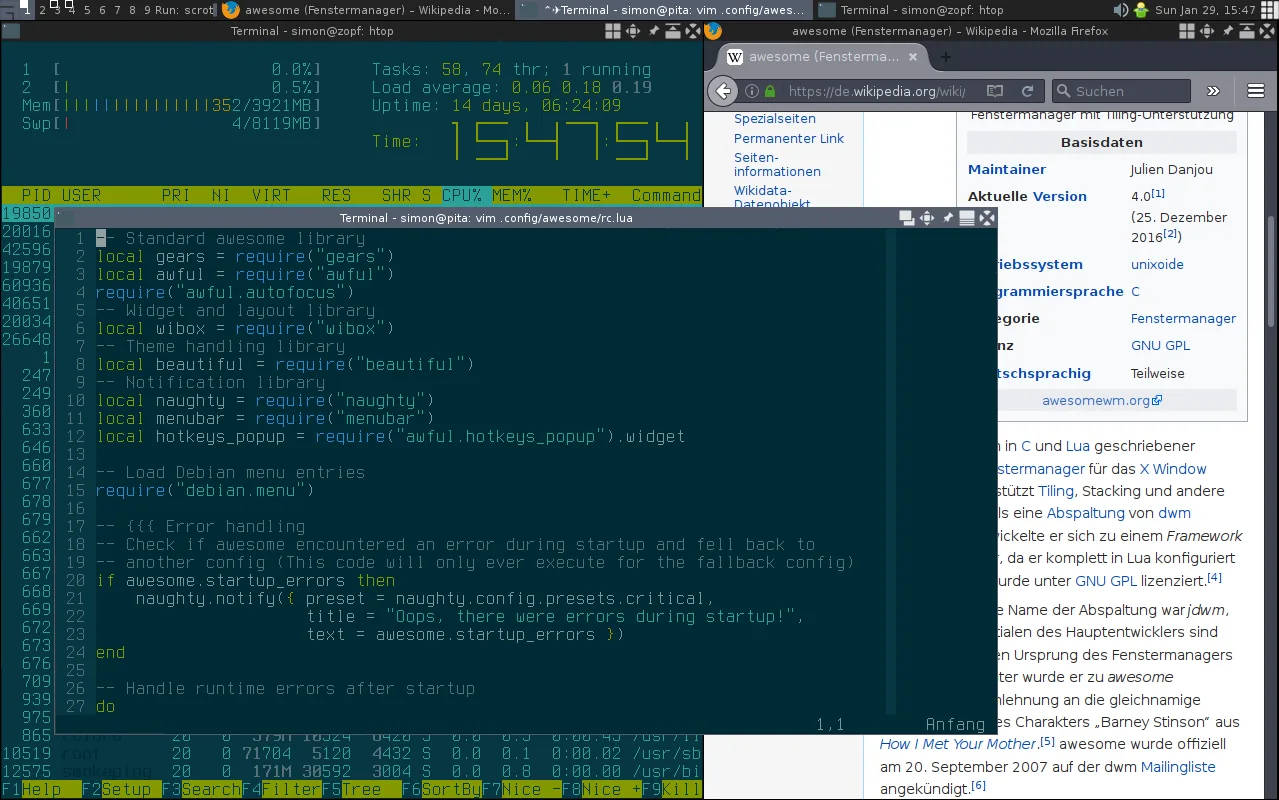

A dynamic X11 window manager with Lua-configurable panels, widgets, tags, menus and notifications. Those components can make a modular setup feel like a small desktop.
rc.lua lives under ~/.config/awesome/. Install your terminal and other applications separately. Lua and the Awesome API offer more flexibility and take more learning than i3’s text format. Check rc.lua before restarting.
Gaming on X11 and Wayland
On Cthulhu I game on Arch Linux with dwm under X11. Steam with Proton and Battle.net through Lutris are part of my regular setup. I’ve also played on NixOS with Sway under Wayland. Those are two combinations I’ve used, with no performance claim about either display system. My own concerns are the exact game, the GPU and driver, and whether the two monitors, audio and capture work together.
For a new gaming setup I’d check the game and its anti-cheat first, then graphics support and the package source for Steam. To pick a session, I’d try the display arrangement and one actual screen share. XWayland covers many older X11 applications in a Wayland session. PipeWire and a matching portal matter when OBS or a browser requests screen capture. Remote desktop deserves its own trial, particularly if you need to connect before anyone logs in. My Linux gaming guide goes into how Steam, Proton and Lutris fit together.
Pick an update routine you’ll actually follow
A stable release means fewer changes in the base over its lifetime. It still receives security fixes. A rolling release is useful when newer hardware or software needs recent packages. I try to do full updates, read the change notices and keep a recovery path. In Debian, apt update refreshes package lists. On Arch, pacman -Syu refreshes and upgrades together. On NixOS I update the inputs I use and build a new system generation. Those operations take different amounts of attention.
If you’re undecided, answer a few questions in the Linux Distro Finder. Then compare the first two profiles and look up the compromises in the update guide. After that I’d boot one from USB and do an ordinary task on it. Sometimes it’s as simple as finding a desktop where I can spend the evening playing something instead of adjusting the evening’s desktop.
Screenshot credits
- Linux Mint 22.3 · Cinnamon · Breno Martins de Oliveira Vasconcelos · GPLv3 · resized or converted to WebP for this page
- Debian 13 Trixie · GNOME · TOMats · CC0 · resized or converted to WebP for this page
- Fedora 42 Workstation · GNOME · The Fedora Project · GPL · resized or converted to WebP for this page
- Fedora 42 · KDE Plasma · The Fedora Project · GPL · resized or converted to WebP for this page
- CachyOS 2025-08-25 · KDE Plasma · Peter Jung and the CachyOS Developer Team · GPL · resized or converted to WebP for this page
- Zorin OS 18 · GNOME · Breno Martins de Oliveira Vasconcelos · GPLv3 · resized or converted to WebP for this page
- Ubuntu 26.04 LTS · GNOME · Canonical Limited · GPL · resized or converted to WebP for this page
- openSUSE Tumbleweed · KDE Plasma 6 · GatoVerde95 · CC BY 4.0 · resized or converted to WebP for this page
- Slackware 15 · KDE Plasma · The Slackware Linux Project · GPL · resized or converted to WebP for this page
- Hyprland · Worthymelight · CC BY 4.0 · resized or converted to WebP for this page
- Ubuntu Sway Remix 26.04 · Sway · Aleksey Samoilov · GPL · resized or converted to WebP for this page
- LXQt · niri · Stefan Draxlbauer · CC0 · resized or converted to WebP for this page
- Ubuntu Budgie 26.04 · labwc · Ubuntu Budgie Team · GPL · resized or converted to WebP for this page
- i3 · Diki Ananta · CC BY-SA 4.0 · resized or converted to WebP for this page
- awesomewm 4 · Sbruder04 (screenshot) · awesomewm and application contributors · CC BY-SA 4.0 · resized or converted to WebP for this page
- Xfce 4.20 · Xfce project gallery · GPL · resized or converted to WebP for this page
- Arch Linux · dwm · Cthulhu · Dennis Hilk
- Gentoo Linux · xmonad · Cthulhu · Dennis Hilk
- NixOS · xmonad · Cthulhu · Dennis Hilk
Read more
Window Manager Config Generator for Your First LoginLinux Updates ExplainedLinux Migration Companion