
In this article
- What changed when Windows 10 reached end of support?
- Free Windows 10 ESU in Europe and the local account option
- How to enroll in Windows 10 ESU and verify it
- Windows 10 Decision Lab
- When upgrading to Windows 11 makes sense
- Try Linux from USB and plan a migration
- The Linux desktop I use every day
- Can I play modern AAA games on Linux?
- Windows 10 ESU frequently asked questions
- Sources and verification
Last reviewed · Microsoft provides Consumer ESU for eligible Windows 10 PCs through 12 October 2027. In the European Economic Area (EEA), enrollment is available at no extra cost if you continue to sign into Windows with the Microsoft account used to enroll. There is a paid option for people who want to keep using a local account. Sources and verification
What changed when Windows 10 reached end of support?
In the morning the PC still starts, the browser opens, and the printer prints. That evening it may even run the game you bought your graphics card for. End of support is hard to see from the desktop. What changed on 14 October 2025 was the service behind it. Regular support ended for the mainstream Windows 10 editions. Whether Windows Update now delivers operating system security fixes depends in part on enrollment in Extended Security Updates, or ESU.
Ask three separate questions before spending money or wiping a drive. Do you need security updates for your current Windows 10 installation? Is this PC officially eligible for Windows 11? And what software, hardware, or games must still work on the next system? Each answer gives you something concrete to check before you settle on a plan.
- Regular support endsThe Windows 10 Home and Pro 22H2 lifecycle ends. ESU covers selected security updates after that date.
- Microsoft documents another yearAn editor’s note on the Windows blog confirms the new end date for personal devices.
- Original consumer cutoffOlder guides may still mention the original October 2026 window. In the business program, 13 October 2026 also marks the end of ESU Year One.
- Current status reviewedMicrosoft’s German and English consumer pages list October 2027 and say existing enrollment continues automatically.
- Consumer ESU endsThis date applies to late enrollments as well. Paying in 2027 gives you coverage through the same deadline.
What does ESU actually cover?
ESU supplies security updates classified as critical or important by the Microsoft Security Response Center under the program. That matters for a PC you still use every day. New features, routine bug fixes and general Windows technical support fall outside the program. Microsoft describes an exception for help with ESU license activation and installing ESU updates. Browsers, Office, game launchers, drivers and other applications follow their own lifecycles. An up-to-date browser cannot replace operating system patches, and a patched Windows installation cannot fix a vulnerability in an old accounting application.
Think of Consumer ESU as time to run specific checks. You can review official Windows 11 eligibility or spend an afternoon with a Linux USB drive while your current setup still works. Pick a date for that test. Otherwise, a printer driver or a missing game save can end up choosing the timetable for you.
Free Windows 10 ESU in Europe and the local account option
Microsoft documents specific Consumer ESU terms for the European Economic Area, which includes Germany and Ireland. There are two sign-ins to understand. One is the Microsoft account used to enroll the device. The other is the account you use to sign into Windows day to day. Enrollment requires a Microsoft account and the license is associated with that account.
| Your situation | Microsoft’s published cost | Account and conditions |
|---|---|---|
| You continue signing into Windows with the enrollment account | No additional cost | Keep using the same Microsoft account to sign into Windows. This also applies if you switch from a local account during free enrollment. |
| You want to keep signing into Windows with a local account | One-time purchase of US$30 or the local currency equivalent, plus applicable tax | Use a Microsoft account for enrollment and purchase. You can keep your local Windows sign-in afterward. Check the final price shown in the wizard. |
| Business use, managed PC or a specialist edition | Depends on the license, lifecycle and program | Confirm the device’s management status and exact edition before applying consumer terms. |
The 60-day condition. Under the free EEA option, if you stop using the enrollment account to sign into Windows, Microsoft says ESU updates will stop after a period of up to 60 days. If updates have stopped for that reason, enroll again to resume them. Signing into a Microsoft website is different from signing into Windows on the enrolled PC. The wording also leaves room for coverage to stop before exactly two months have elapsed.
For example, a family PC already using a Microsoft account can use that account to enroll at no extra cost if the device and administrator meet the requirements. Someone who deliberately uses a local Windows account can review the paid option and keep their everyday sign-in. Microsoft allows an existing ESU license to be reused on up to ten eligible devices. Add each device through its own enrollment wizard with the original Microsoft account and follow the conditions of the option you chose.
Outside the EEA, the choices can differ. Microsoft’s US page lists a no-extra-cost option that uses PC settings sync, 1,000 Microsoft Rewards points, or a one-time purchase. Check the Microsoft page for your region and the options the wizard presents on your PC. US enrollment instructions are a poor guide to what you will see in Germany or Ireland.
How to enroll in Windows 10 ESU and verify it
Microsoft lists Windows 10 22H2 Home, Pro, Pro Education and Pro for Workstations as eligible editions. It also requires the latest Windows update, the KB5126256 ESU licensing preparation package, an administrator account on the device, and an enrollment Microsoft account that is not a child account. These steps follow Microsoft’s documentation. The wording on screen can vary with the display language and device state.
- Check version and edition. Press Windows + R, type
winverand press Enter. You can also find the Windows specifications under Settings → System → About. If the PC reports 21H2 or LTSC, check the version and product lifecycle first. - Prepare Windows Update. Open Settings → Update & Security → Windows Update, check for updates and install what Windows offers. Restart if prompted. Microsoft says Windows Update delivers KB5126256 automatically to devices that are not yet enrolled once they have a security update from 14 October 2025 or later, such as KB5066791. Check update history after restarting. If you need to install the package manually, follow Microsoft’s documented order.
- Check the device and account. Use an administrator account. If this is an employer’s machine, or you are unsure who manages it, check with IT before changing account or device enrollment settings.
- Open the wizard. Follow the ESU enrollment link in Windows Update, such as Enroll now. If you are signed in locally, sign into a Microsoft account when the wizard asks.
- Choose your option. Read the sign-in condition for no-extra-cost EEA enrollment. If you want to stay local, check the purchase total and the Microsoft account that will hold the license before you confirm.
- Verify enrollment and patch installation separately. Check the ESU status on the Windows Update screen. Then check for updates again and look in update history for successful installation of an applicable cumulative security update for 22H2. Match the date and KB number against Microsoft’s release information. A Defender definition update, a browser update, or the presence of KB5126256 alone does not establish ESU coverage.
Why is ESU missing or failing in Windows Update?
| What you see | Next check |
|---|---|
| No link before enrollment | Confirm 22H2, the edition, current Windows updates, KB5126256 and any pending restart. Check administrator rights, kiosk mode and device management. Then look for an existing license. |
| You changed your Windows sign-in | For free EEA coverage, check the original enrollment account. If coverage stopped because the sign-in changed, enroll again. |
| Enrollment succeeded, but an update fails | Write down the KB number, error code and date. Check free space, connectivity and whether Windows is waiting for a restart. Take those details to the Windows Update troubleshooter or Microsoft’s ESU support. |
| The PC reports managed settings | Check for Active Directory domain membership, an Entra join or MDM enrollment. Microsoft distinguishes Entra registration alone, which can be eligible if the other requirements are met. |
A PC that has not enrolled can still boot and run ordinary applications, while the Windows installation misses the Consumer ESU fixes. Once enrolled, it can receive the applicable fixes through Windows Update. Windows uses cumulative updates, so you need not see every security fix released since October 2025 as its own item in the history. When investigating a problem, keep a record of the current build, the most recent cumulative update and the enrollment status.
Consumer ESU, commercial ESU and LTSC have different lifecycles
Commercial Windows 10 ESU has its own annual licensing model. Microsoft lists 12 October 2027 for the end of commercial Year Two and 10 October 2028 for Year Three. The latter date applies to the commercial program. LTSC is another distinction. For example, Windows 10 Enterprise LTSC 2021 has regular support through 12 January 2027, while Windows 10 IoT Enterprise LTSC 2021 has a lifecycle through 13 January 2032. Look up the full product name before borrowing a date from another edition.
Windows 10 Decision Lab
Answer for the particular PC you want to keep, replace or move to another system. Choose the relevant unknown option if you still need to check something. The result explains what to do next and identifies any assumptions you need to verify yourself.
Check Windows 10 ESU as a bridge
You need more time or have a Windows-dependent workflow to protect. Check Consumer ESU eligibility and plan your move to a supported system.
Review the official Windows 11 upgrade
You confirmed Windows 11 eligibility. Upgrading may preserve your familiar software and devices with fewer changes. Back up your data and check vendor support.
Try Linux from a live USB first
Boot Linux from USB to check your hardware and typical tasks. Use copies of important files and leave the Windows drive alone.
Prepare the Linux migration
Your test worked and you reported no unresolved Windows dependencies. Verify backup and recovery, software and games, and decide between a separate installation and dual boot.
Confirm the edition or management status first
Your answers do not establish a Consumer ESU route for this device. Check the edition, management status and applicable licensing or update path first.
When upgrading to Windows 11 makes sense
If the PC meets the official requirements and you rely on a specific Windows application, specialist accessory or anti-cheat protected game, Windows 11 is often the shortest route. Check Microsoft’s PC Health Check and Windows Update for upgrade eligibility. Requirements include a supported CPU, TPM 2.0 and UEFI firmware capable of Secure Boot. A machine can feel fast enough and still fall outside the supported hardware list. A compatibility hold can also explain why an otherwise eligible machine is not yet offered the upgrade.
Back up your data and verify that you can restore it before upgrading. If device encryption or BitLocker is active, make sure the recovery key is accessible away from the affected PC. Check that the software and peripherals you depend on are supported on the target version. For a working PC, vendor support for the tools you actually use can matter more than the processor list.
Try Linux from USB and plan a migration
A live USB is the first test I suggest to someone coming from Windows. It starts a Linux desktop from the stick and leaves you free to decide whether to open the installer. Testing the hardware in front of you settles practical questions about Wi-Fi, audio and that second monitor faster than comparing distribution names.
- Prepare the image. Download the ISO from the distribution and verify its checksum and signature according to the project’s instructions. Back up the USB drive first, since writing the image overwrites it. Double-check the target in the writing tool.
- Boot from the stick once. Use the PC’s boot menu to start the live session. Leave internal drives alone. You can explore without opening the installer or changing partitions or encryption.
- Rehearse a normal day. Check Wi-Fi, Bluetooth, audio output, microphone, webcam, printer or scanner, both displays at the expected resolutions and refresh rates, and suspend and resume. Open copies of the files you actually work on. Try exporting a document that uses special fonts or working with a spreadsheet that contains macros.
- Interpret the result. USB speed affects responsiveness. Graphics drivers and codecs can differ after installation. A successful boot is useful hardware evidence. For a demanding game or a large creative project, use a second test on a separate installation.
- Plan data and a way back. Include documents, photos, local mail archives, browser profiles, password vaults, SSH keys, projects, game saves and recovery codes as applicable. Restore a few files to verify the backup. Being able to open a restored project tells you more than a green badge in the backup app.
Put each application in one of three groups: essential, replaceable or rarely used. For essential tools, check the files, plug-ins, licensing and collaboration workflows you rely on. A Linux alternative can be excellent for a new project and still lose information when importing older work. If you choose dual boot, identify the target disk, UEFI mode, encryption state and recovery options first. Follow your distribution’s partitioning guide. A spare machine or drive can make the experiment easier to manage.
If you prefer to start on paper, the Windows-to-Linux migration checklist covers the sequence. For a specific sound problem, the Linux audio guide has its own troubleshooting flow.
The Linux desktop I use every day
Over the years I’ve tried Debian, Arch Linux, Gentoo, NixOS, CachyOS, Zorin OS and Linux Mint. My desktops have included KDE Plasma and XFCE, and I’ve used window managers including Sway, i3, XMonad and dwm. As of November 2026, Cthulhu, my main PC, runs Arch Linux and dwm on X11. The older NixOS and Plasma setups are still part of my Cthulhu Linux journey.
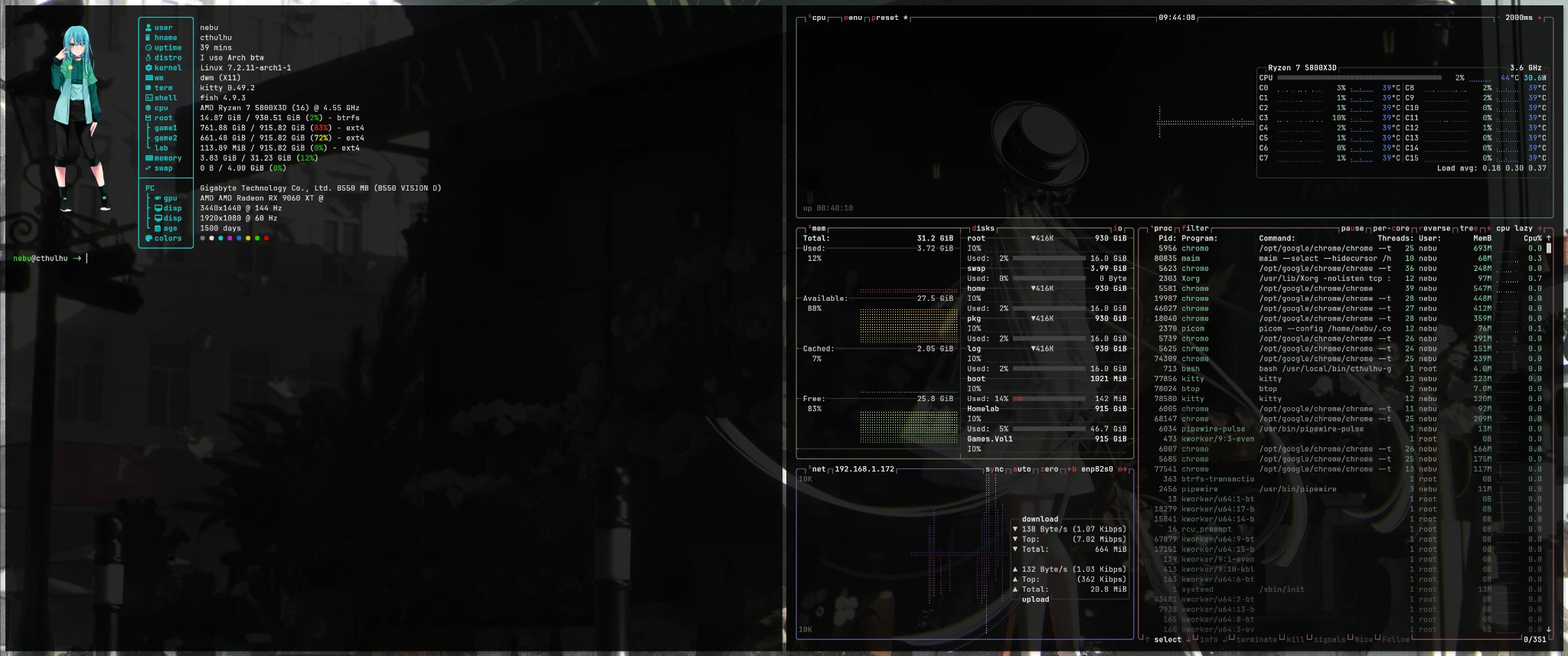
The Ryzen 7 5800X3D and Radeon RX 9060 XT with 16 GiB drive displays at 3440 × 1440 at 144 Hz and 1920 × 1080 at 60 Hz. Kitty is my terminal and Fish is my shell. I like how little dwm gets in the way of my work, and I keep coming back to XMonad too. Those preferences came out of using several desktops long enough to know what I reach for every day.
For a first move from Windows, I would start with Linux Mint Cinnamon, Zorin OS, or KDE Plasma on a newcomer-friendly distribution. Mint’s Driver Manager is one reason I like it, particularly for NVIDIA machines. I tend to leave Arch and especially Gentoo for later. If tiling windows interests you, I found Sway relatively approachable. On an existing Arch test machine, you can explore separate desktop sessions and see how i3, dwm or XMonad suit you. That makes a good project once you actually want to experiment with the desktop.
- Distribution
- The installable system, including the Linux kernel, system tools, package repositories and update policy. Mint and Arch are examples.
- Desktop environment
- A coordinated set of desktop interfaces such as a panel, settings, a file manager and session management. Cinnamon and KDE Plasma are examples.
- Display system
- With X11, an X server mediates applications, display and input. With Wayland, applications speak the Wayland protocol to a compositor, which also assembles the display output.
- Window manager
- Arranges windows and controls focus and workspaces. dwm is an X11 window manager. Sway handles those jobs as a Wayland compositor.
Can I play modern AAA games on Linux?
On my PC, yes, for many games. On Steam I play War Thunder, the Assassin’s Creed games I own, Baldur’s Gate 3, Captain of Industry, Alan Wake 2, Anno 1800 and Arma 3. Assetto Corsa, Assetto Corsa Competizione, Kingdom Come: Deliverance II, No Man’s Sky, Starfield, S.T.A.L.K.E.R. 2 and Where Winds Meet also worked well for my use. Duke Nukem 3D, Half-Life and Counter-Strike are among my positive experiences with older games. A different launcher, update or multiplayer mode can change the result on another PC.
Steam can launch native Linux builds directly. For many Windows games, it uses Proton, Valve’s compatibility layer built on Wine. For the World of Warcraft versions I play, I use Lutris to set up the Battle.net launcher and manage its Wine environment. Wine provides Windows interfaces on Linux, and Battle.net remains Blizzard’s launcher. This is my working setup. Check Blizzard’s published requirements for the platforms it officially supports.
Anti-cheat, launchers and ordinary game bugs
A launcher that fails to open is a different problem from a game that reaches its menu but refuses a protected online match. Battlefield, GTA Online and Fortnite have been trouble spots for me. Check the specific release. EA lists Secure Boot and EA Javelin for Battlefield 6 on PC. Rockstar identifies BattlEye as a limit on GTA Online on Steam Deck and distinguishes it from Story Mode. Steam’s Proton documentation explains why Easy Anti-Cheat and BattlEye support can depend on what the publisher enables or configures for a particular game.
On 14 October 2026, Epic introduced EAC Linux v2 and named Fortnite as the planned first pilot. The announcement describes requirements including signed kernels and modules, TPM 2.0 and Secure Boot. As of 7 November 2026, Epic still describes the Linux release as upcoming. If playing Fortnite locally matters to you, keep a Windows option available until the publisher confirms support for your setup.
To check a game before moving, search for the exact release on ProtonDB. Read several recent desktop Linux reports with similar GPUs and Proton versions. Check the date, launcher, mods and actual mode tested, then read the publisher’s current anti-cheat statement. A real match in the required mode on a test installation is the check that matters. For setup details, see my Steam, Proton and Lutris guide. My gaming journey traces the very different machines and games I used along the way.
AMD, NVIDIA, Mesa and Vulkan
I’ve used a GeForce RTX 3060 Ti and a Radeon RX 9060 XT for Linux gaming. Both worked for my use. AMD was easier for me to set up. On a modern Radeon, the kernel’s amdgpu driver typically works alongside Mesa’s RADV Vulkan driver. Mesa supplies userspace graphics drivers. Vulkan is the graphics API a game or translation layer can use. On NVIDIA, install the matching driver and userspace libraries through the distribution’s supported route. The particular GPU and driver stack matter. My RX 9060 XT troubleshooting report shows one case where those details made a difference.
Windows 10 ESU frequently asked questions
Do I have to enroll again for the second year?
Microsoft says existing Consumer ESU enrollment continues automatically through 12 October 2027. The conditions of the option you chose still apply. Check Windows Update if your sign-in or device management has changed.
Can I keep my local Windows account?
Yes, in the EEA the one-time purchase lets you continue signing into Windows locally. You use a Microsoft account to enroll and buy the license.
Can I wait until 2027 to enroll?
Eligible devices can enroll through the end of the program. Coverage still ends on the same date. If you regularly use Windows 10 online today, check your enrollment now.
Do I need a new PC?
Check whether this PC officially supports Windows 11 first. If you can do without Windows-only applications, a live USB test can help you see whether this same machine meets your needs with Linux.
Sources and verification
Reviewed . ESU terms and system requirements were checked against the documentation below. The Windows instructions follow Microsoft’s published steps. Linux desktop and gaming observations are my experience. The dated desktop screenshot comes from the linked Cthulhu build report.
- Microsoft · Consumer ESU in Germany and the EEA
- Microsoft · Consumer ESU in Ireland and the EEA
- Microsoft · US enrollment options
- Microsoft · End of support and help with ESU activation
- Windows Experience Blog · 25 June 2026 editor’s note on the extension
- Microsoft Support · KB5126256 and installation
- Microsoft Learn · Windows 10 builds, cumulative updates and LTSC
- Microsoft Learn · Commercial ESU years
- Microsoft Support · PC Health Check
- Microsoft · Windows 11 system requirements
- Linux Mint · ISO verification, live USB and drivers
- Linux Migration Companion · Source and documentation
- Valve · Proton and anti-cheat configuration
- Lutris · Games and runners on Linux
- Blizzard · World of Warcraft system requirements
- EA · Secure Boot and Javelin for Battlefield 6
- Rockstar · BattlEye and GTA Online
- Epic Online Services · EAC Linux v2 and planned Fortnite pilot
- Epic Games · Fortnite on Linux support status
- Epic Games Store · Launcher preview and planned Linux release
- Mesa · RADV as an AMD Vulkan driver
- ProtonDB · Community game reports